

6. Upload your World!
Uploading Worlds
Set the Thumbnail Image and Comments to your Uploading World!
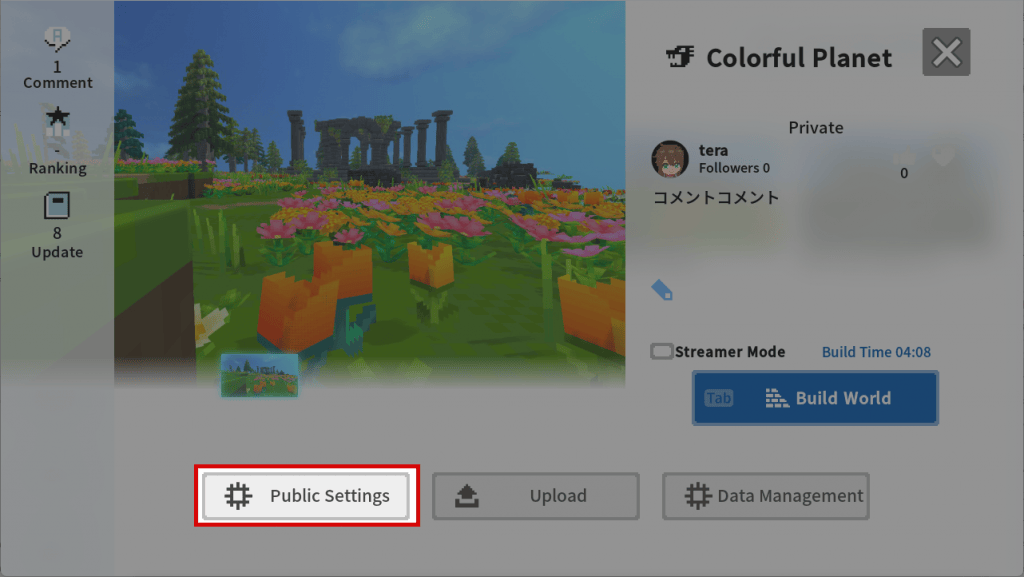
Add the World Name, Comments, Thumbnail, and Search Tags from the upload settings.
By changing the status to ‘Public’ and applying the changes, it will be displayed on the World list.
・Regarding Search Tags
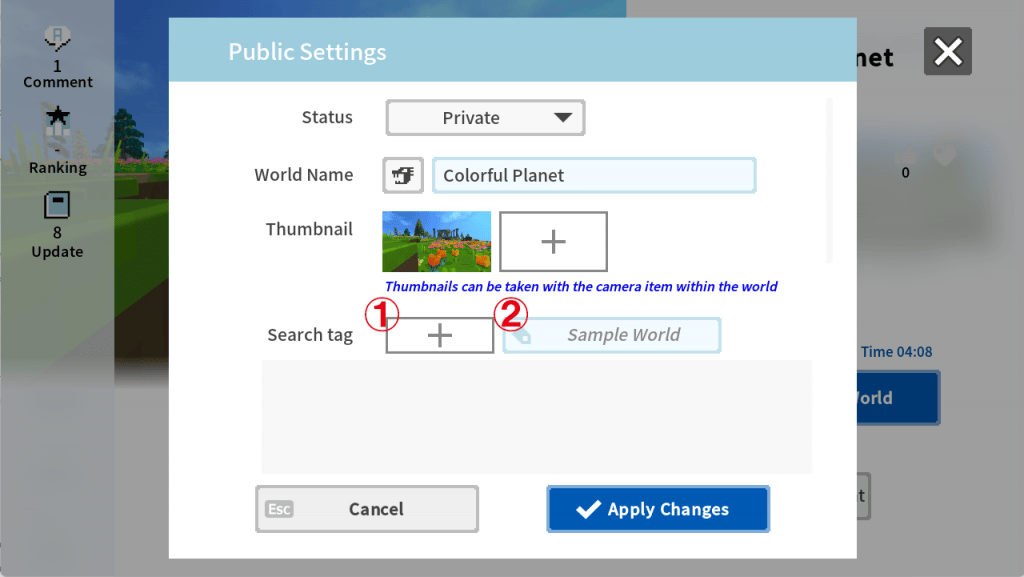
①You can add official existing tags.
②You can input text to create original tags.
Set genres and tags that represent the created World as much as possible, as it will be the criteria players use when searching for Worlds.
・How to Capture Thumbnails Using the Camera Tool
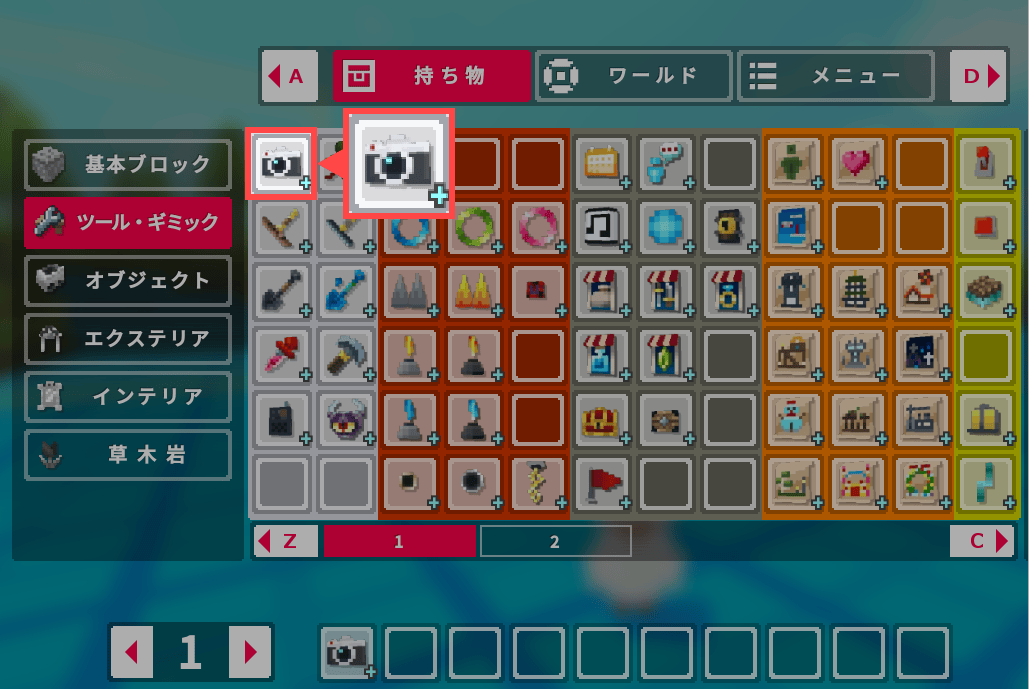
By using the “Camera Tool” found in the “Tools and Gimmick” tab, you can capture screenshots for thumbnails.

You can adjust the field of view in the camera tool’s Build Menu.
Your character will not appear in the shot when using the camera tool for taking screenshots, and markers such as start points and goal points will also be hidden.
| Before Using the Camera Tool | 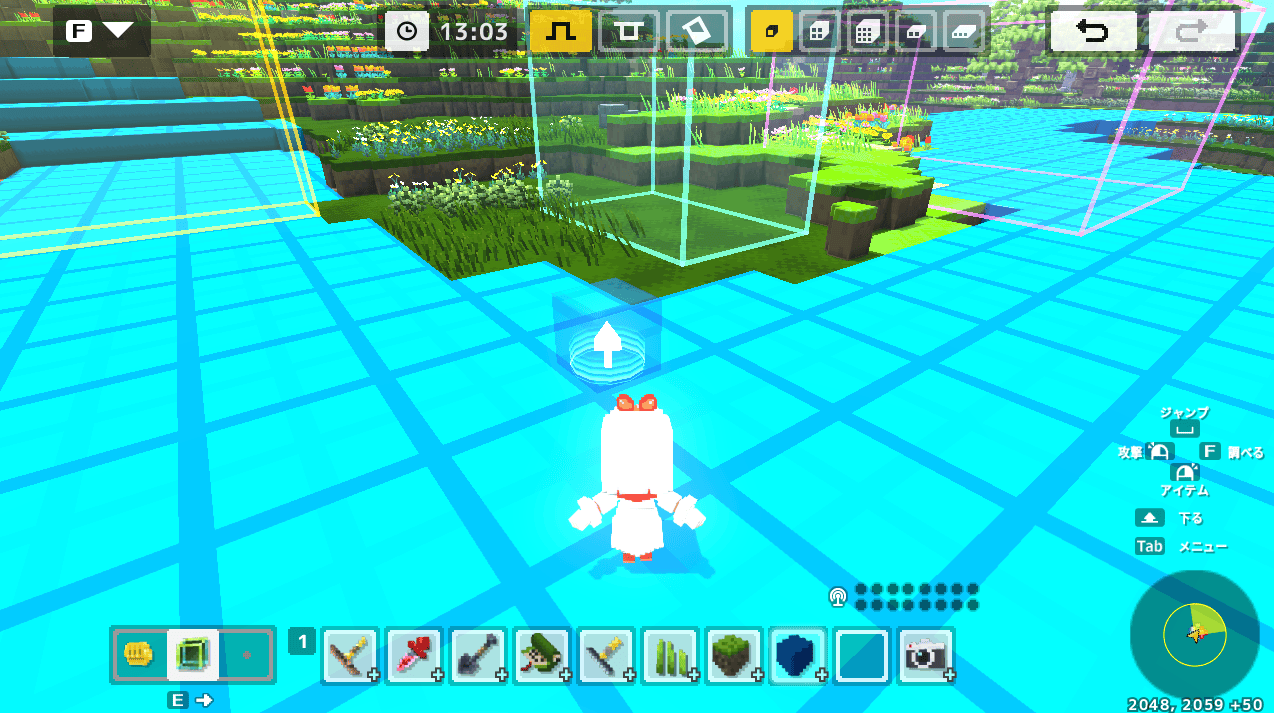 |
| Screenshots Captured with the Camera Tool | 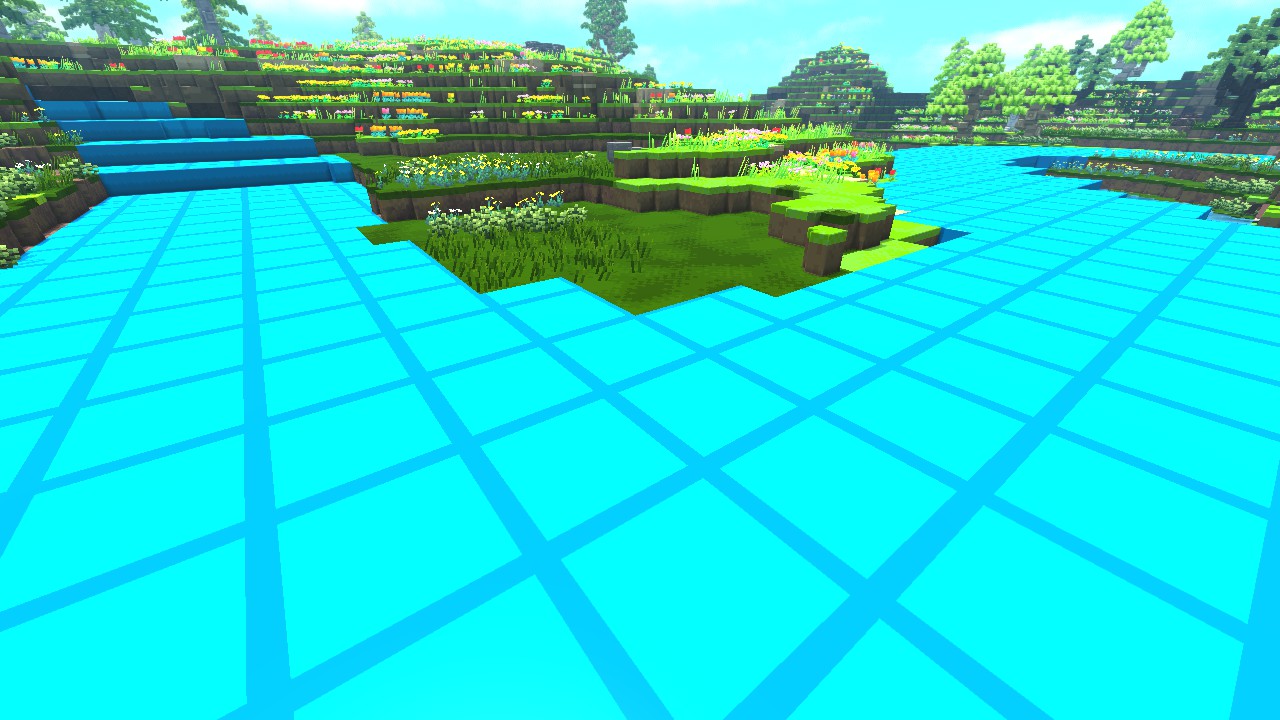 |
Make an Upload when Updating a Uploaded World!
・Regarding Uploads
To update an uploaded world, reupload after editing.
While useful when making significant changes to the World’s content, please consider carefully before executing this function, as it cannot be undone.
・Regarding Backups
If you back up the state of the World to the server, you can download the created world from any device at any time and continue building from where you left off.
Once your world has started to take shape, it is recommended to back it up in ‘Data Management’.
Both uploaded worlds and backed-up worlds can be restored.
Uploading Worlds
Set the Thumbnail Image and Comments to your Uploading World!
Add the World Name, Comments, Thumbnail, and Search Tags from the upload settings.
By changing the status to ‘Public’ and applying the changes, it will be displayed on the World list.
・Regarding Search Tags
①You can add official existing tags.
②You can input text to create original tags.
Set genres and tags that represent the created World as much as possible, as it will be the criteria players use when searching for Worlds.
・How to Capture Thumbnails Using the Camera Tool
By using the “Camera Tool” found in the “Tools and Gimmick” tab, you can capture screenshots for thumbnails.
You can adjust the field of view in the camera tool’s Build Menu.
Your character will not appear in the shot when using the camera tool for taking screenshots, and markers such as start points and goal points will also be hidden.
| Before Using the Camera Tool | |
| Screenshots Captured with the Camera Tool | |
Make an Upload when Updating a Uploaded World!
・Regarding Uploads
To update an uploaded world, reupload after editing.
・Regarding Backups
If you back up the state of the World to the server, you can download the created world from any device at any time and continue building from where you left off.
Once your world has started to take shape, it is recommended to back it up in ‘Data Management’.
Both uploaded worlds and backed-up worlds can be restored.