

How to Enter a World & How to Create a Room
How to Enter the World and Create Rooms
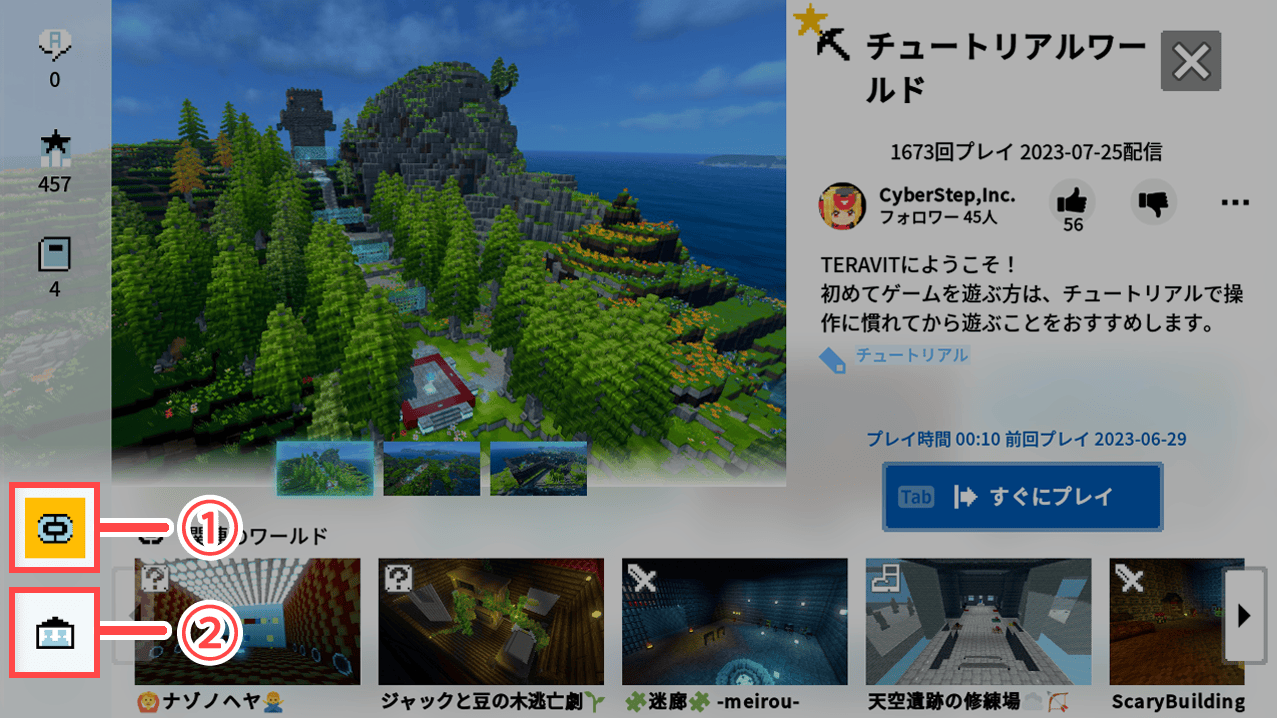
・How to View the Screen
①Related Worlds
Other Worlds uploaded by the creator of the selected World will be displayed.
② Room Creation
You can create rooms.
Existing rooms will be displayed here.
・How to Create a Room
The ‘Play Now’ feature automatically creates a new room if none exists in the selected World; if a room is available, you will enter it automatically and start gameplay.
To make your own room, choose ‘Create a Normal Room’ from the room creation options.
By setting a password, you can create a room that only players who know the password can enter.
Create a room with a set password if you do not want other players to enter.
・About Streaming Rooms
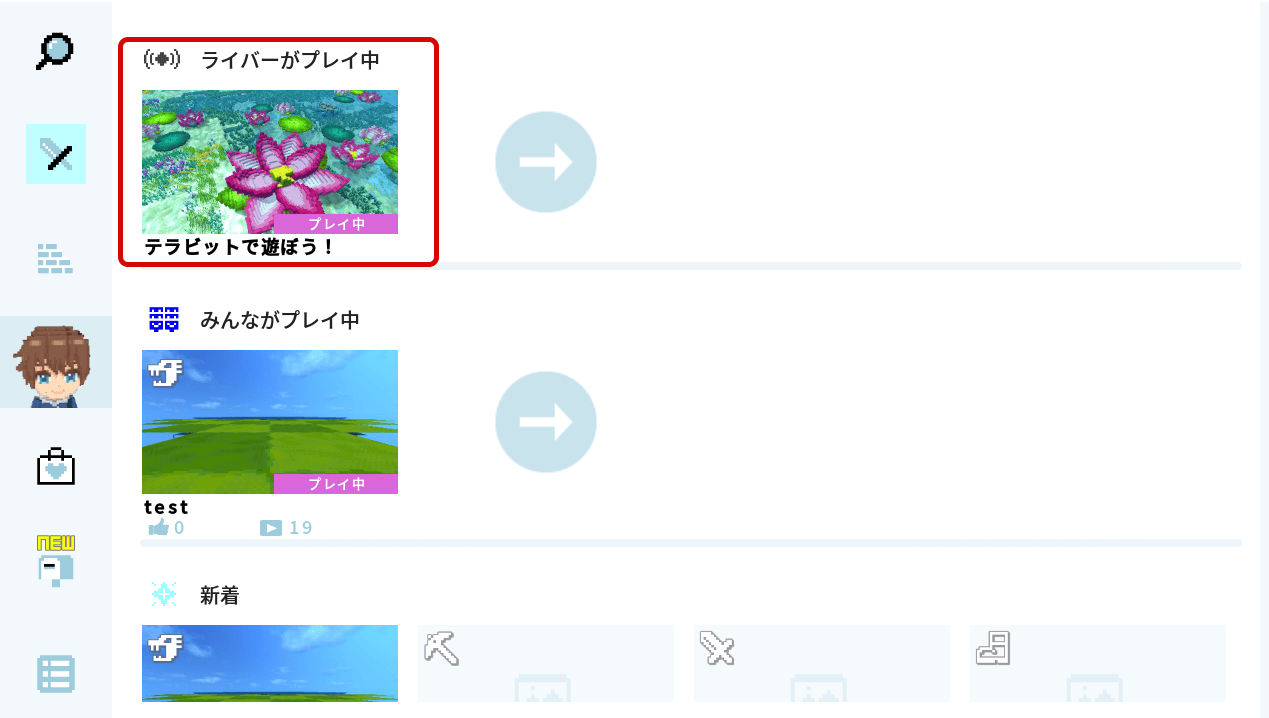
When you create a streaming room, the room will be displayed in the ‘Streamer is in play!’ section of the World list screen.
You can set the displayed thumbnail to anything. It is not limited to in-game screenshots.
<Differences Between Normal Rooms and Streaming Rooms>
| Normal Room | Streaming Room | |
| Max Number of Players in Room | 16 Players | 64 Players | Appearance on the World List | Not Displayed | Displayed | Room Thumbnail Image | Cannot Set/td> | Can Set Freely |
<How to Create a Streaming Room>
1.Open the room creation screen from ‘Create a Streaming Room’.
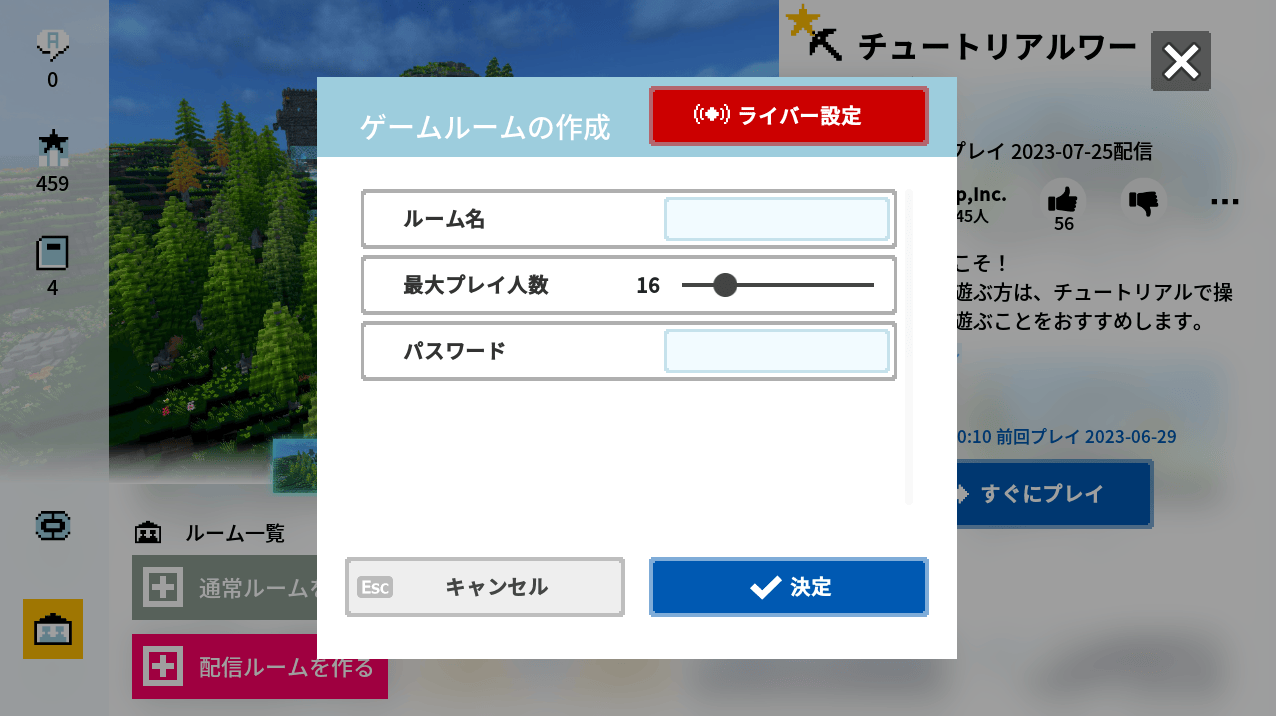
2.Open ‘Streamer Settings’ and set the room’s title, comments, and thumbnail image.
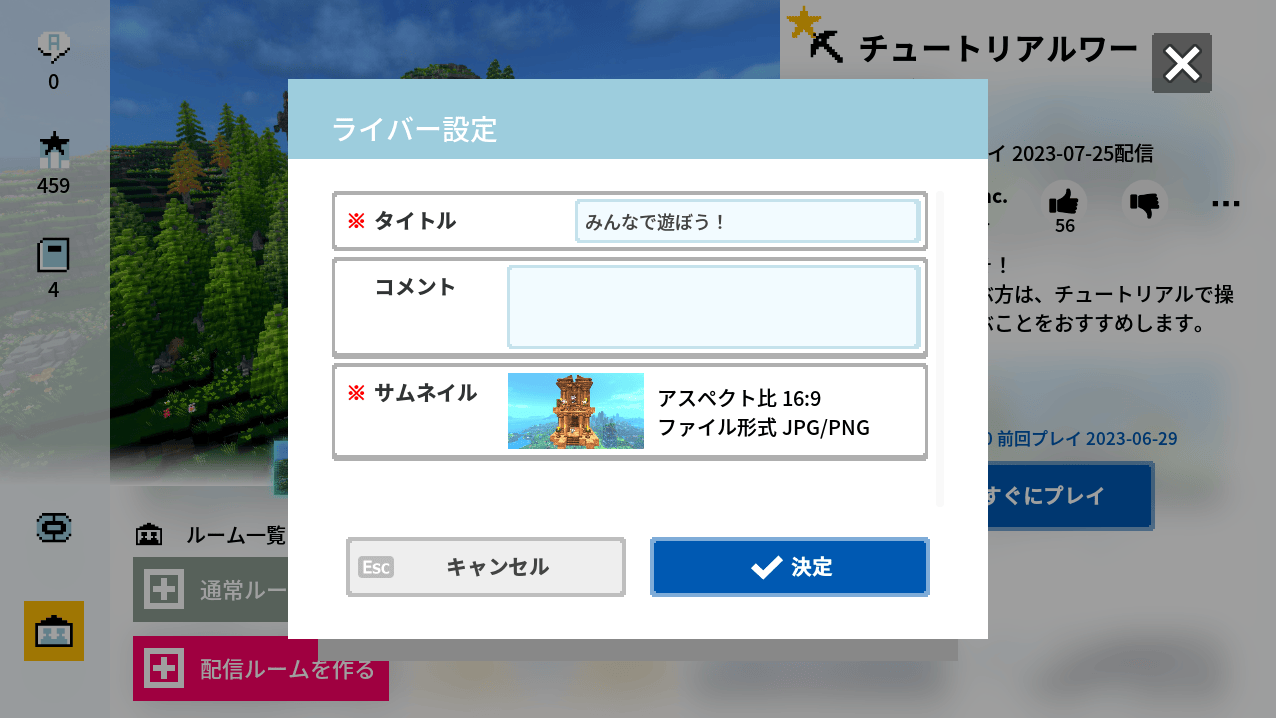
3.Return to the room creation screen and set the maximum number of players and password.
*The room name will be applied based on the title set in Step 2.
How to Enter the World and Create Rooms
・How to View the Screen
①Related Worlds
Other Worlds uploaded by the creator of the selected World will be displayed.
② Room Creation
You can create rooms.
Existing rooms will be displayed here.
・How to Create a Room
The ‘Play Now’ feature automatically creates a new room if none exists in the selected World; if a room is available, you will enter it automatically and start gameplay.
To make your own room, choose ‘Create a Normal Room’ from the room creation options.
By setting a password, you can create a room that only players who know the password can enter.
Create a room with a set password if you do not want other players to enter.
・About Streaming Rooms
When you create a streaming room, the room will be displayed in the ‘Streamer is in play!’ section of the World list screen.
You can set the displayed thumbnail to anything. It is not limited to in-game screenshots.
<Differences Between Normal Rooms and Streaming Rooms>
| Normal Room | Streaming Room | |
| Max Number of Players in Room | 16 Players | 64 Players | Appearance on the World List | Not Displayed | Displayed | Room Thumbnail Image | Cannot Set/td> | Can Set Freely |
<How to Create a Streaming Room>
1.Open the room creation screen from ‘Create a Streaming Room’.
2.Open ‘Streamer Settings’ and set the room’s title, comments, and thumbnail image.
3.Return to the room creation screen and set the maximum number of players and password.
*The room name will be applied based on the title set in Step 2.
How to View the Home Screen
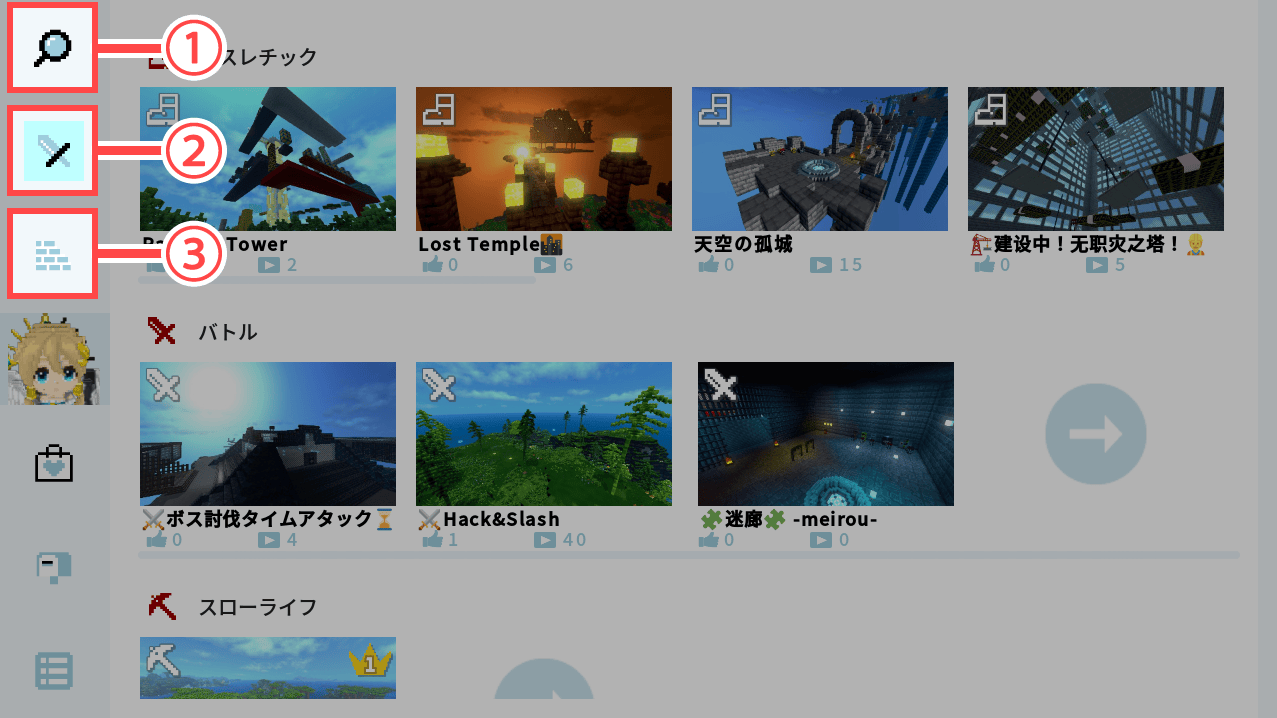
①Search
 |
Search for publicly uploaded Worlds |
 |
Search for rooms in worlds where the password is publicly available |
 |
A list of tags that can be attached to Worlds is displayed. You can search by clicking them. |
②World List
A list of Worlds that have been uploaded by officials and players.
Choose a World and press “Play Now” to play.
Click here for detailed gameplay instructions.
③World Creation
A list of Worlds you created.
Click “Create New World” to build your own.
Click here for detailed instructions on how to build a World.
How to Enter the World and Create Rooms
・How to View the Screen
①Related Worlds
Other Worlds uploaded by the creator of the selected World will be displayed.
② Room Creation
You can create rooms.
Existing rooms will be displayed here.
・How to Create a Room
The ‘Play Now’ feature automatically creates a new room if none exists in the selected World; if a room is available, you will enter it automatically and start gameplay.
To make your own room, choose ‘Create a Normal Room’ from the room creation options.
By setting a password, you can create a room that only players who know the password can enter.
Create a room with a set password if you do not want other players to enter.
・About Streaming Rooms
When you create a streaming room, the room will be displayed in the ‘Streamer is in play!’ section of the World list screen.
You can set the displayed thumbnail to anything. It is not limited to in-game screenshots.
<Differences Between Normal Rooms and Streaming Rooms>
| Normal Room | Streaming Room | |
| Max Number of Players in Room | 16 Players | 64 Players | Appearance on the World List | Not Displayed | Displayed | Room Thumbnail Image | Cannot Set/td> | Can Set Freely |
<How to Create a Streaming Room>
1.Open the room creation screen from ‘Create a Streaming Room’.
2.Open ‘Streamer Settings’ and set the room’s title, comments, and thumbnail image.
3.Return to the room creation screen and set the maximum number of players and password.
*The room name will be applied based on the title set in Step 2.