

Regarding New Registered Accounts & Linking Accounts
About New Account Registration and Linking Accounts
With some exceptions, worlds created in Teravit and data for purchased items and avatars are stored on your device.
For data protection, we recommend making backups of your data, performing uploads, and linking accounts.
About New Account Registration for PC Version
1.The login screen will appear when you first launch Teravit.
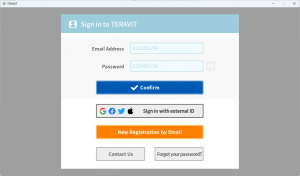
2.When creating a new account with your email address, please choose ‘Sign Up with Email,’ and if you are creating a new account with your existing external ID, please select ‘Sign In with External ID’.
3.Follow the instructions that appear afterward to proceed with the registration process.
4.Once the registration is complete, you will be automatically logged in and the game will start.
Regarding Linking Steam Account
By linking your account to the Steam version, you can use the same play data on the PC version of Teravit.
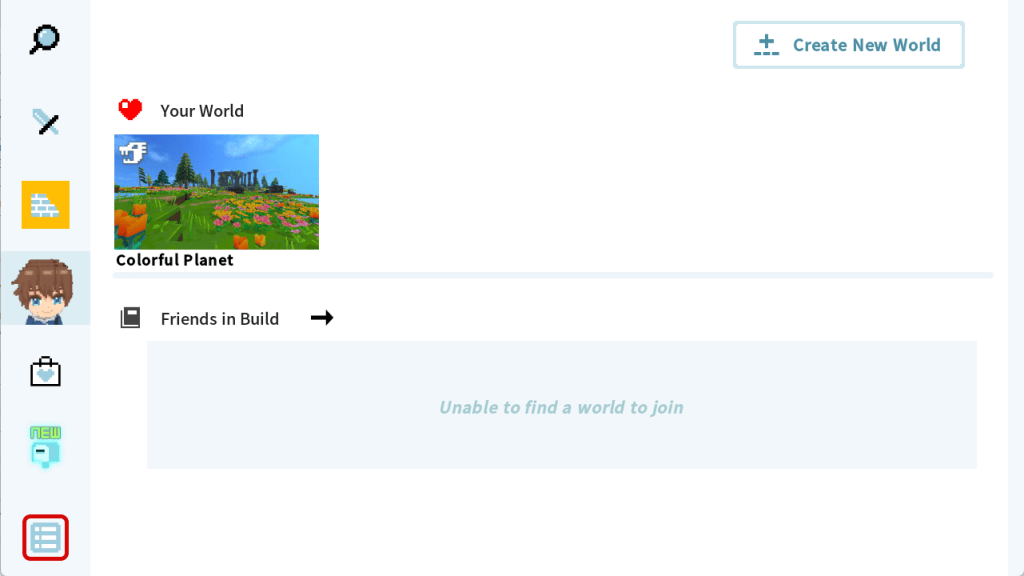
1. Open the “Menu” located at the bottom left of the home screen.
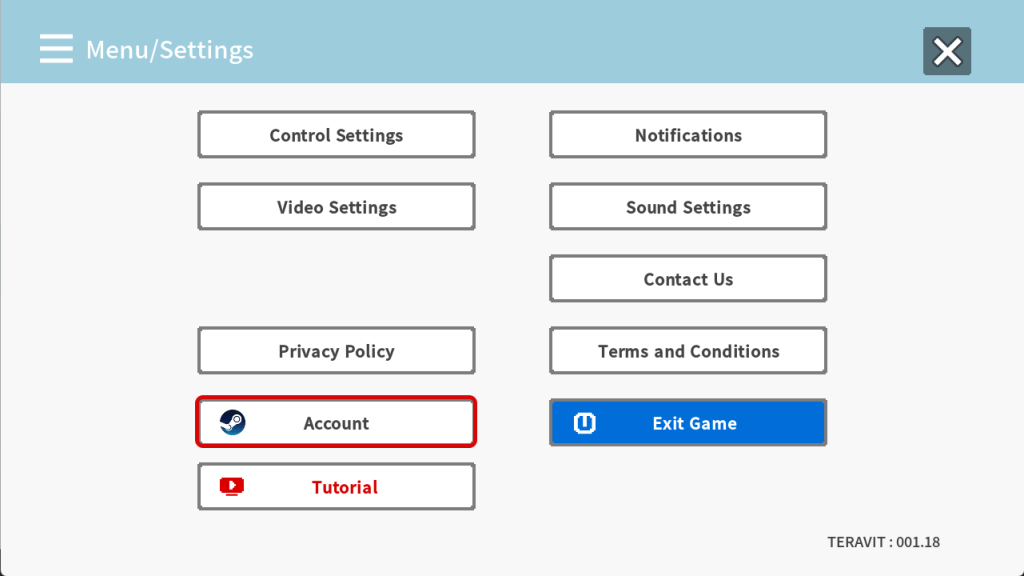
2. Select “Account”.
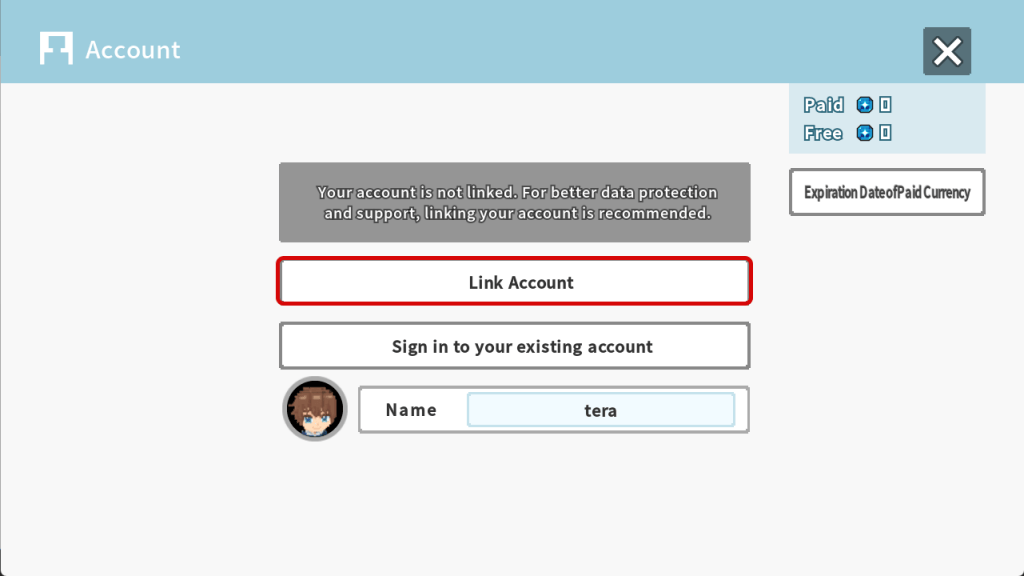
3. Select “Link Account”.
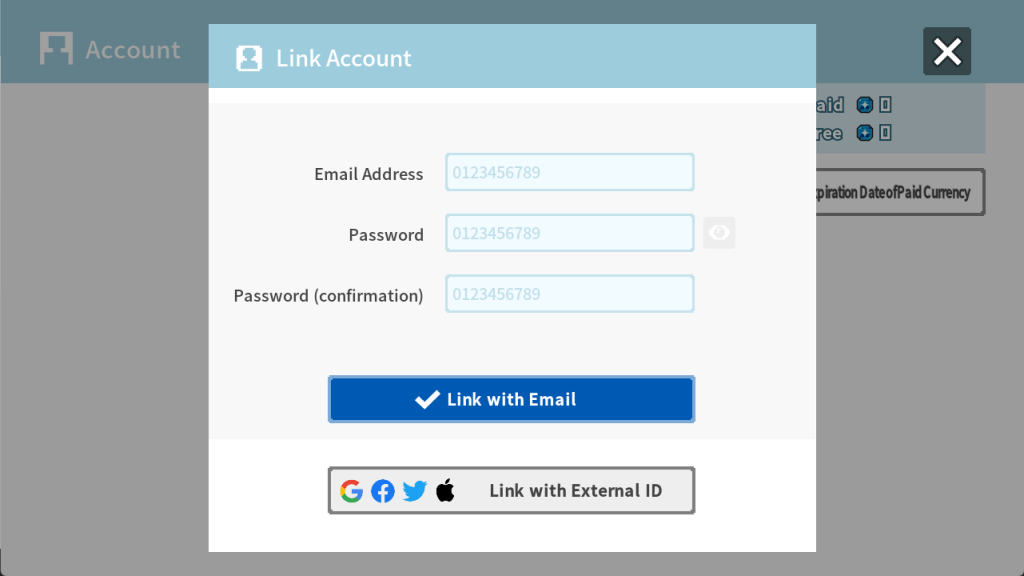
4. Enter the email address and password to be used for account linking.
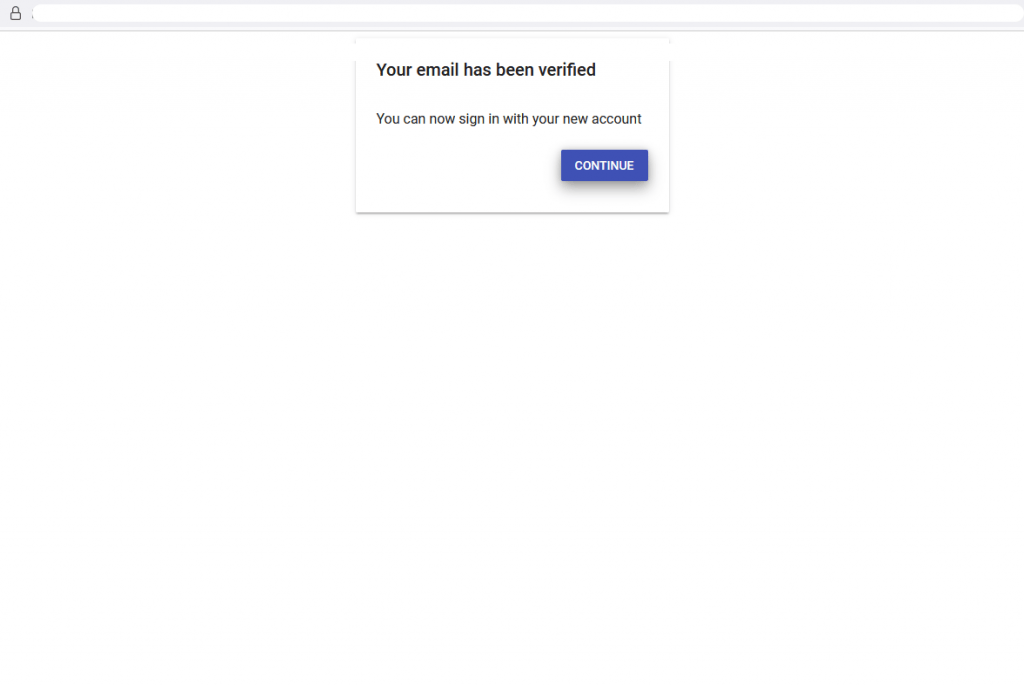
5. Follow the instructions in the verification email sent to the registered email address to complete the verification process.
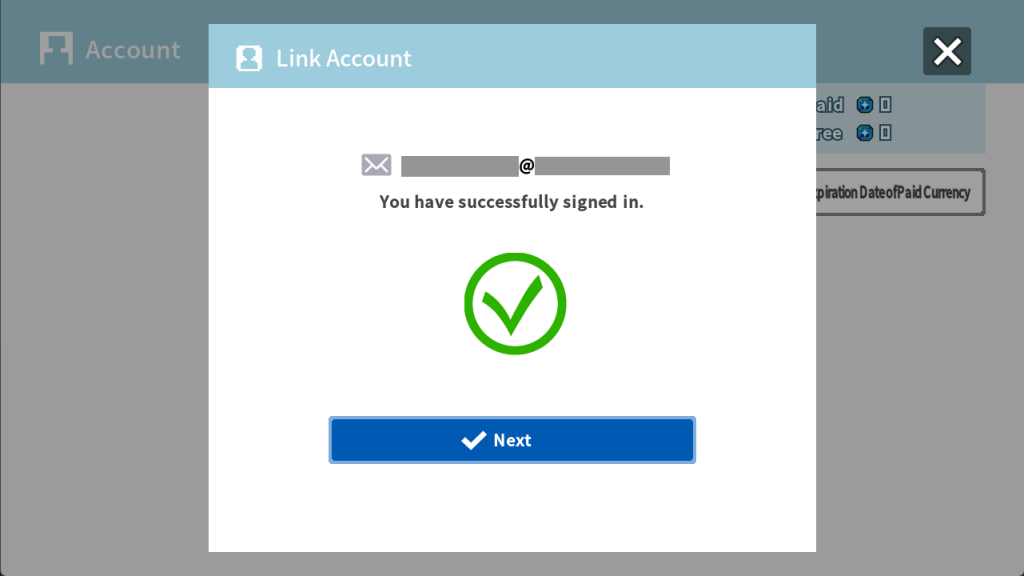
6. Once verification is completed, you will be redirected back to the home screen.
About New Account Registration and Linking Accounts
With some exceptions, worlds created in Teravit and data for purchased items and avatars are stored on your device.
For data protection, we recommend making backups of your data, performing uploads, and linking accounts.
About New Account Registration for PC Version
1.The login screen will appear when you first launch Teravit.
2.When creating a new account with your email address, please choose ‘Sign Up with Email,’ and if you are creating a new account with your existing external ID, please select ‘Sign In with External ID’.
3.Follow the instructions that appear afterward to proceed with the registration process.
4.Once the registration is complete, you will be automatically logged in and the game will start.
Regarding Linking Steam Account
By linking your account to the Steam version, you can use the same play data on the PC version of Teravit.
1. Open the “Menu” located at the bottom left of the home screen.
2. Select “Account”.
3. Select “Link Account”.
4. Enter the email address and password to be used for account linking.
5. Follow the instructions in the verification email sent to the registered email address to complete the verification process.
6. Once verification is completed, you will be redirected back to the home screen.
About New Account Registration and Linking Accounts
Account linking is a feature that allows signing in to Teravit using your email address or external ID.
This feature can also be used to recover the account that you have been using to play in cases such as accidentally deleting the app or changing the used device.
By linking your account, you can play Teravit on your PC and continue playing on your smartphone while on the go, allowing you to play across devices.
Link your Account Using your Email Address.
1. Open the “Menu” located at the bottom left of the home screen.
2. Select “Account”.
3. Select “Link Account”.
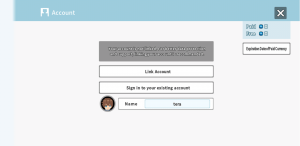
4. Register the email address and password to be used for linking.
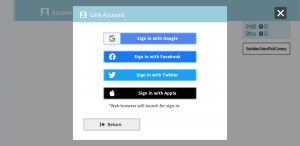
5. Follow the instructions in the verification email sent to the registered email address to complete the verification process.
6. Verification will be completed upon returning to the app, and you will be redirected to the home screen.
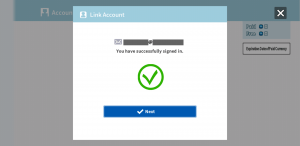
Linking Accounts Using External ID
1. Open the “Menu” located at the bottom left of the home screen.

2. Select “Account”.
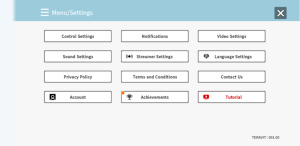
3. Select “Link Account”.
4. Select ‘Link with External ID,’ and choose the service to link with.
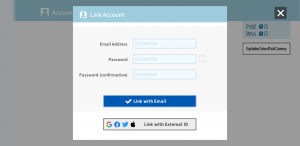
5. Follow the instructions in the verification email sent to the registered email address to complete the verification process.
6. Verification will be completed upon returning to the app, and you will be redirected to the home screen.
Linking to an Existing Account on PC/Steam Version
1. Open the “Menu” located at the bottom left of the home screen.
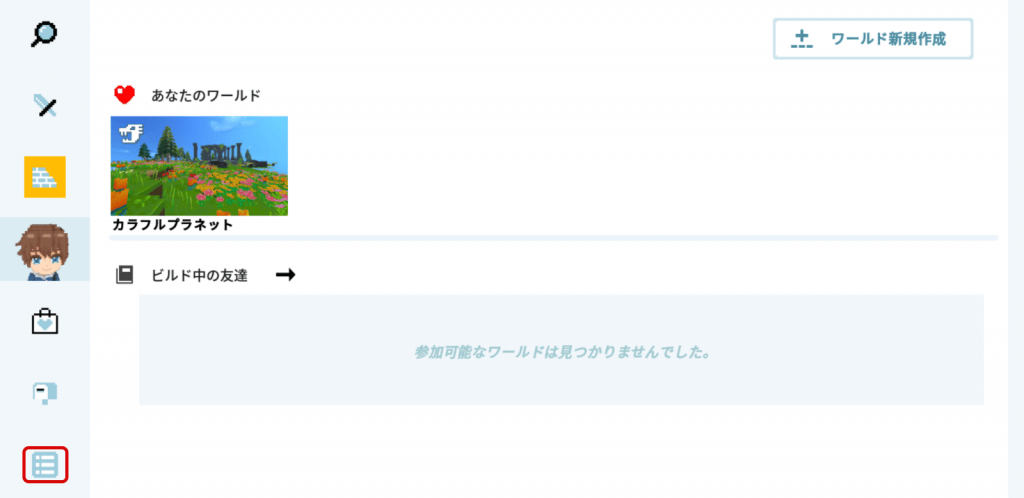
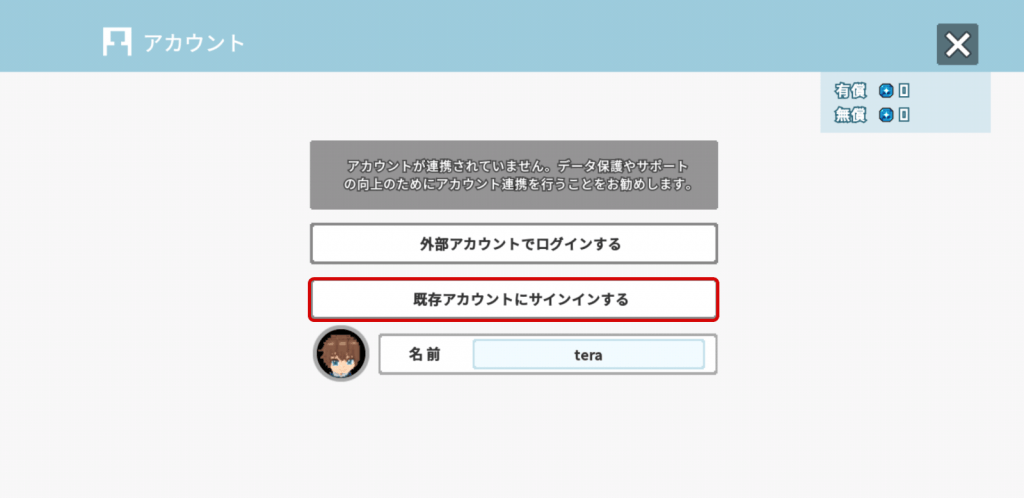
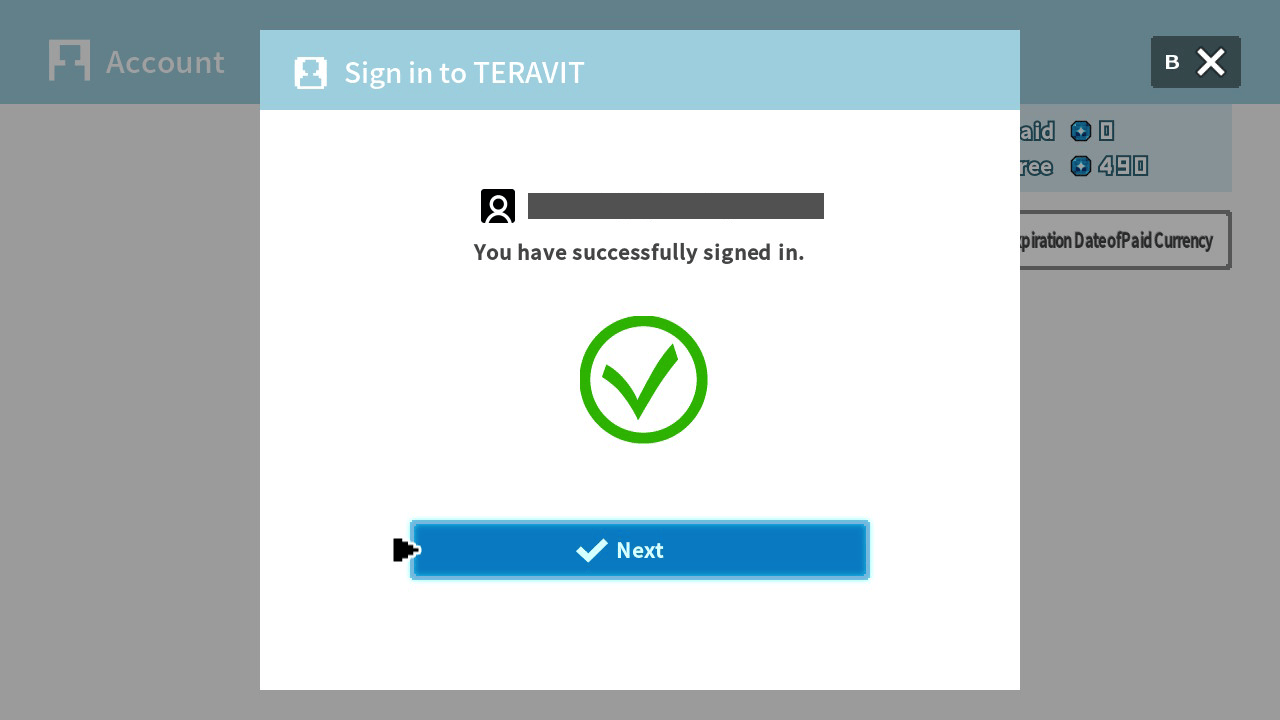
2. Select ‘Sign in with an existing account’.
3. Enter the required information for signing in.
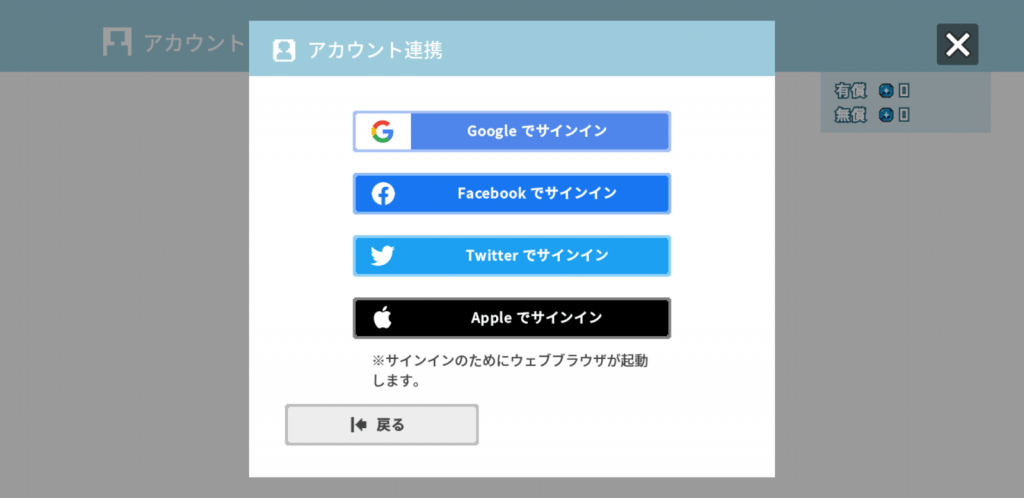
4. After signing in, you will be redirected to the home screen.
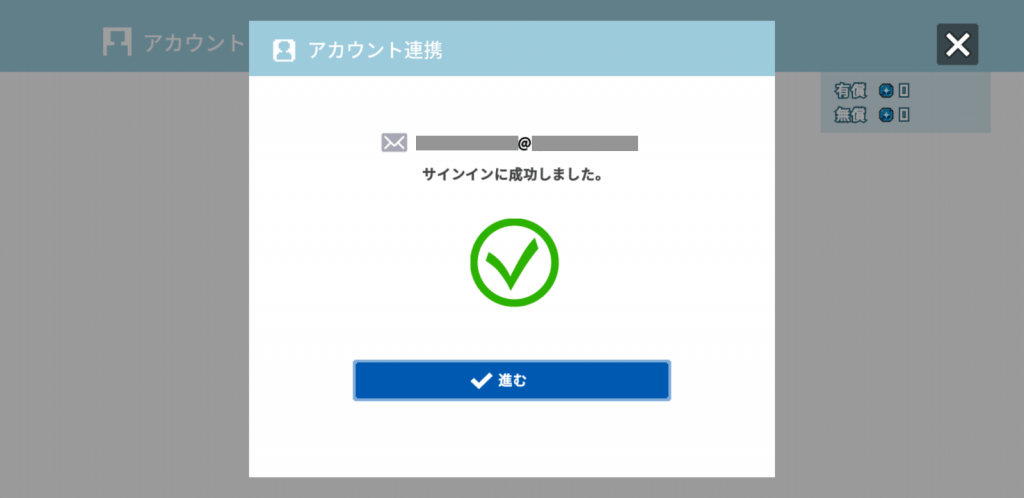
Unlinking Accounts
Follow these steps if you have created an account on the smartphone version.
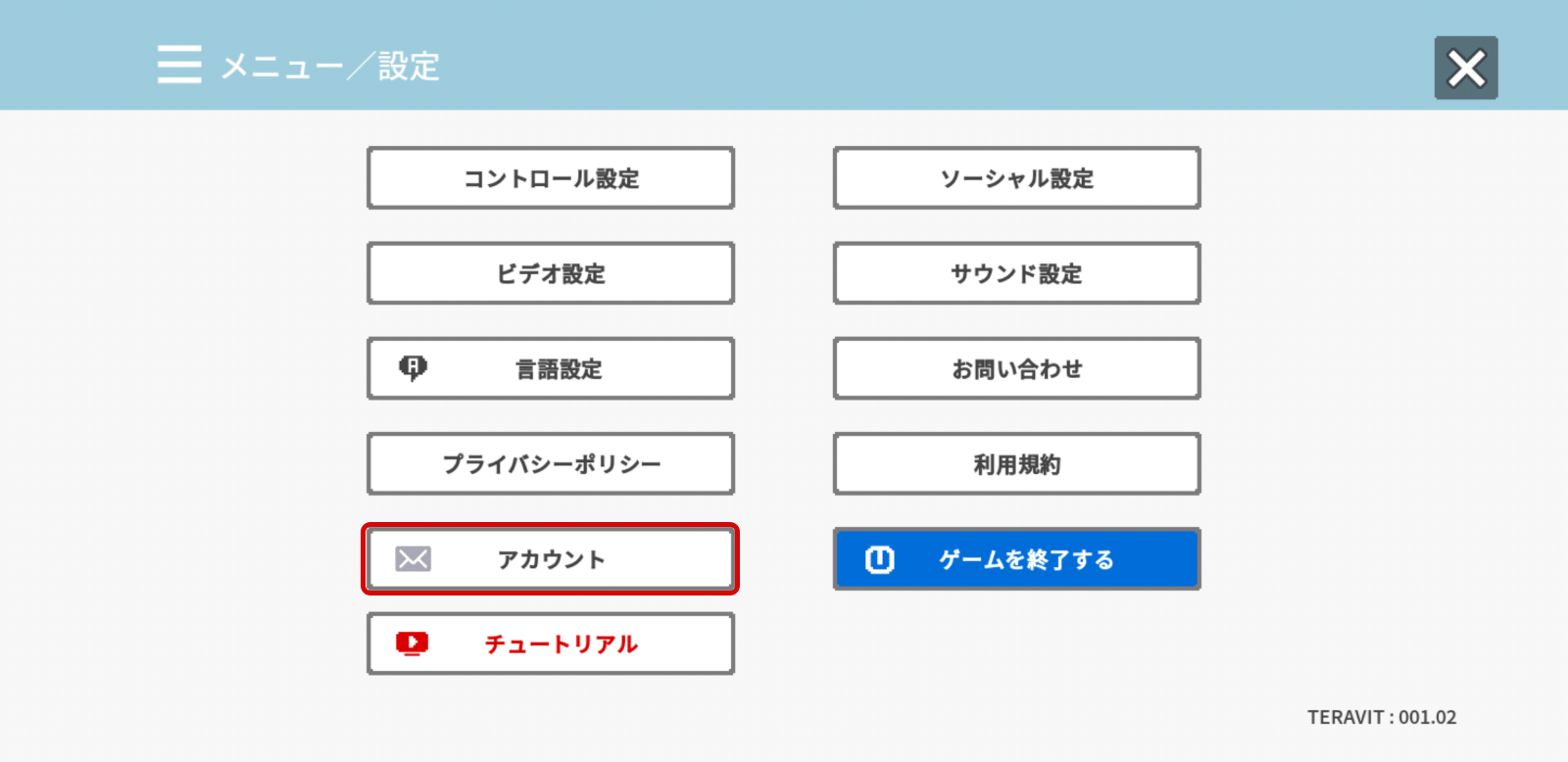
1. Open the “Menu” located at the bottom left of the home screen.
2. Select “Account”.
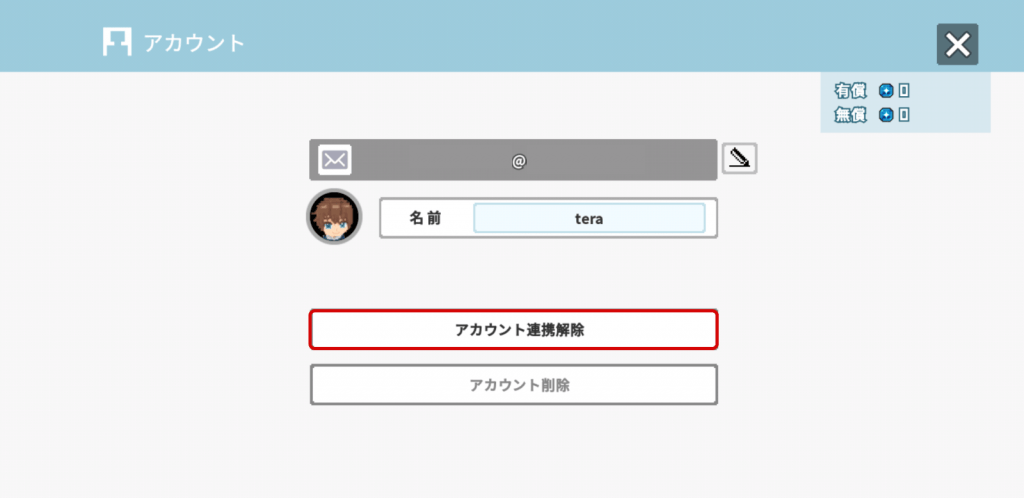
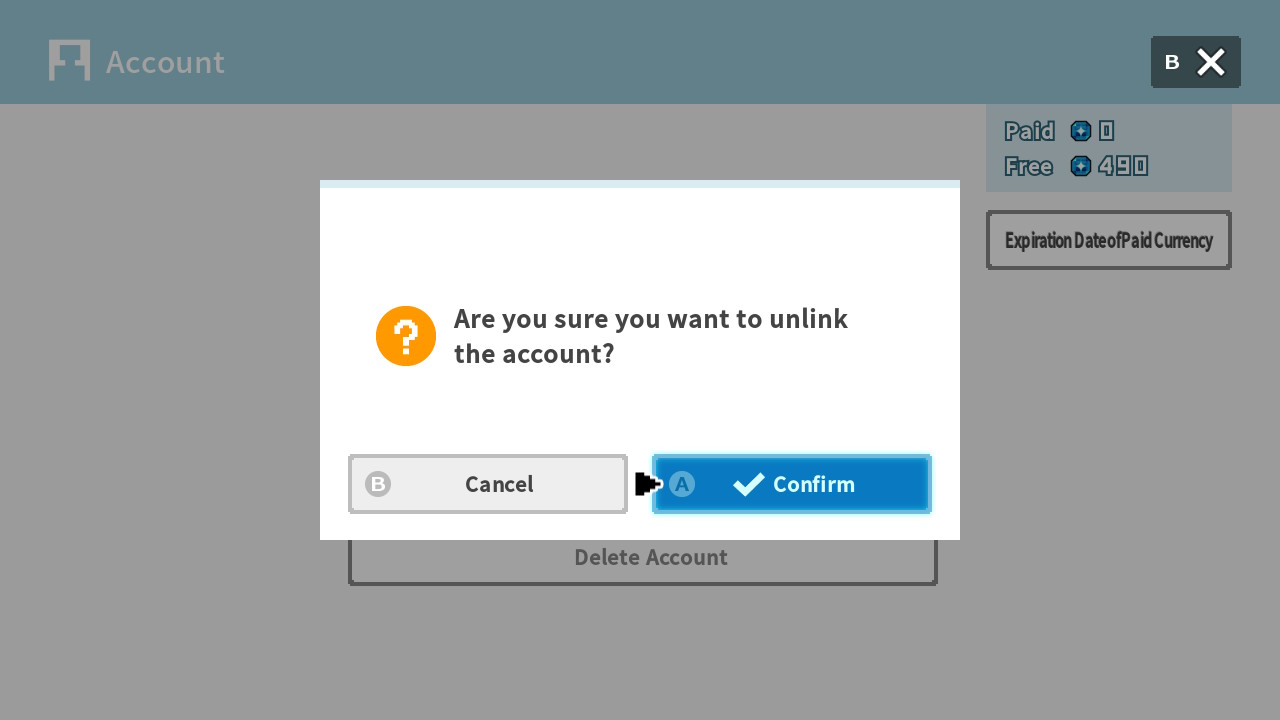
3. Select ‘Unlink Account’.
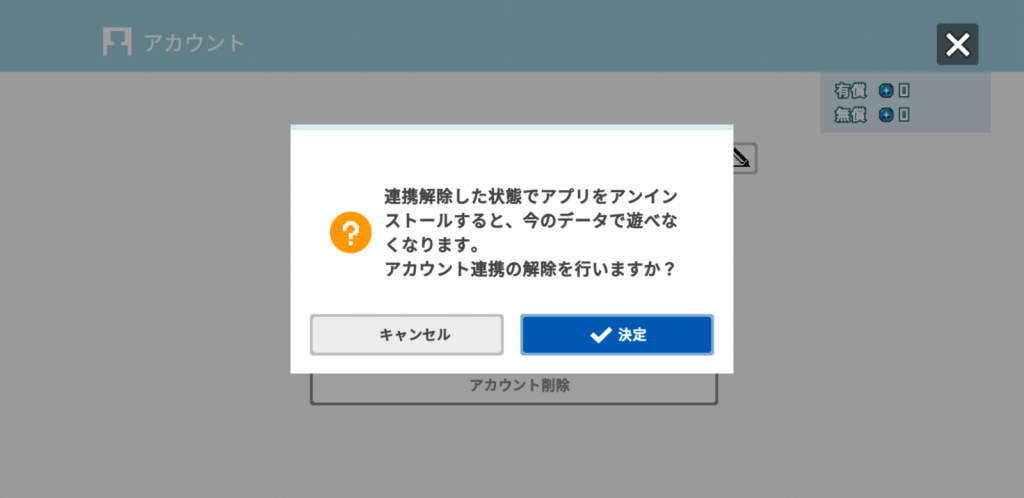
4. Review the precautions and select ‘Confirm’.
< h2 > Signing Out from Linked Account h2 >
If you have a created account on the PC・Steam version, follow these steps to sign out.
1. Open the “Menu” located at the bottom left of the home screen.
2. Select “Account”.
3. Select “Sign Out”.
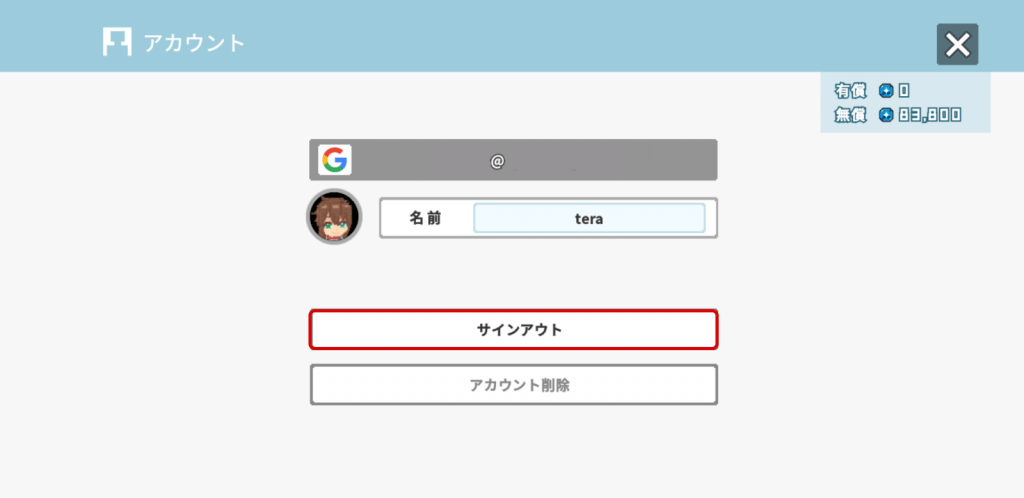
4. Review the precautions and select ‘Confirm’.
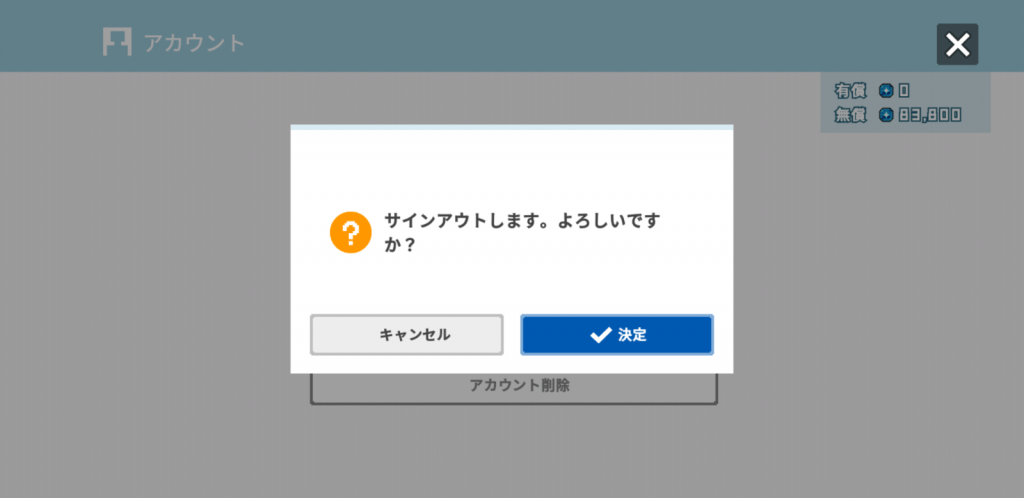
Link Again to Previously Linked Account
1. Open the “Menu” located at the bottom left of the home screen.
2. Select “Account”.
3. Select ‘Sign in with an existing account’.
4. Select ‘Forgot Password,’ and enter your email address.
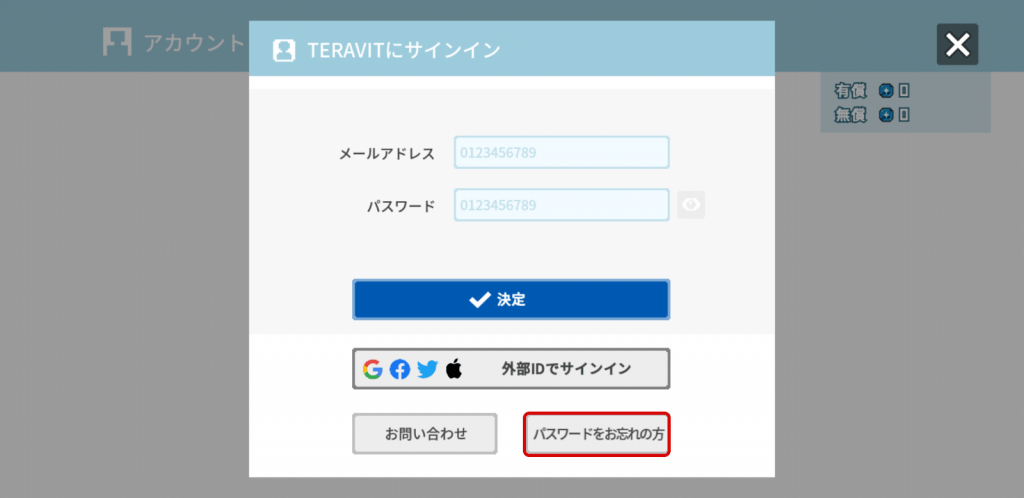
5. Follow the instructions in the email sent to the registered email address and proceed with the password reset process.
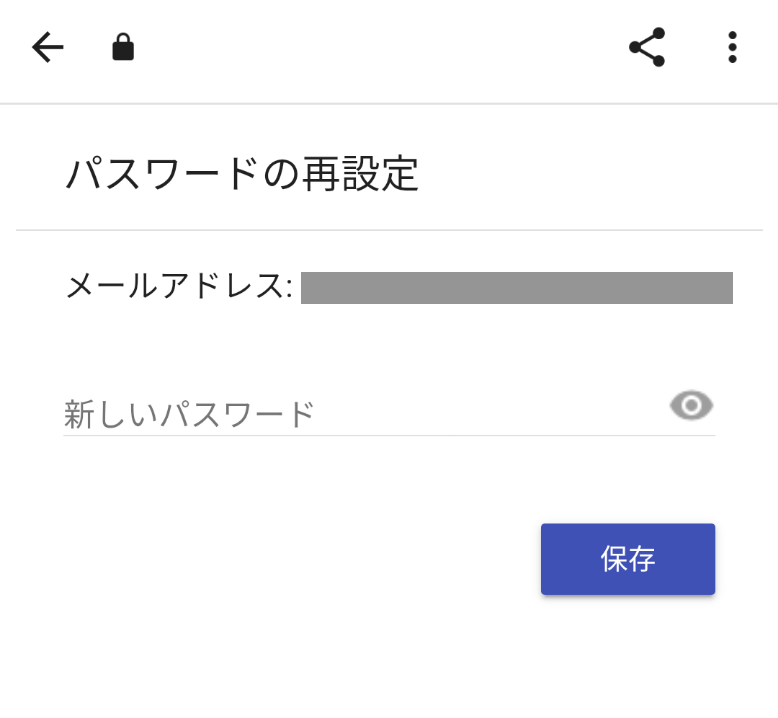
6. After completing the password change, input your email address and password to finalize the linkage.
If you have any questions or encounter issues regarding your account, please contact us through the support form.
About New Account Registration and Linking Accounts
Account linking is a feature that allows signing in to Teravit using your email address or external ID.
This feature can also be used to recover the account that you have been using to play in cases such as accidentally deleting the app or changing the used device.
By linking your account, you can play Teravit on your PC and continue playing on your smartphone while on the go, allowing you to play across devices.
Link your Account Using your Email Address.
1. Open the “Menu” located at the bottom left of the home screen.
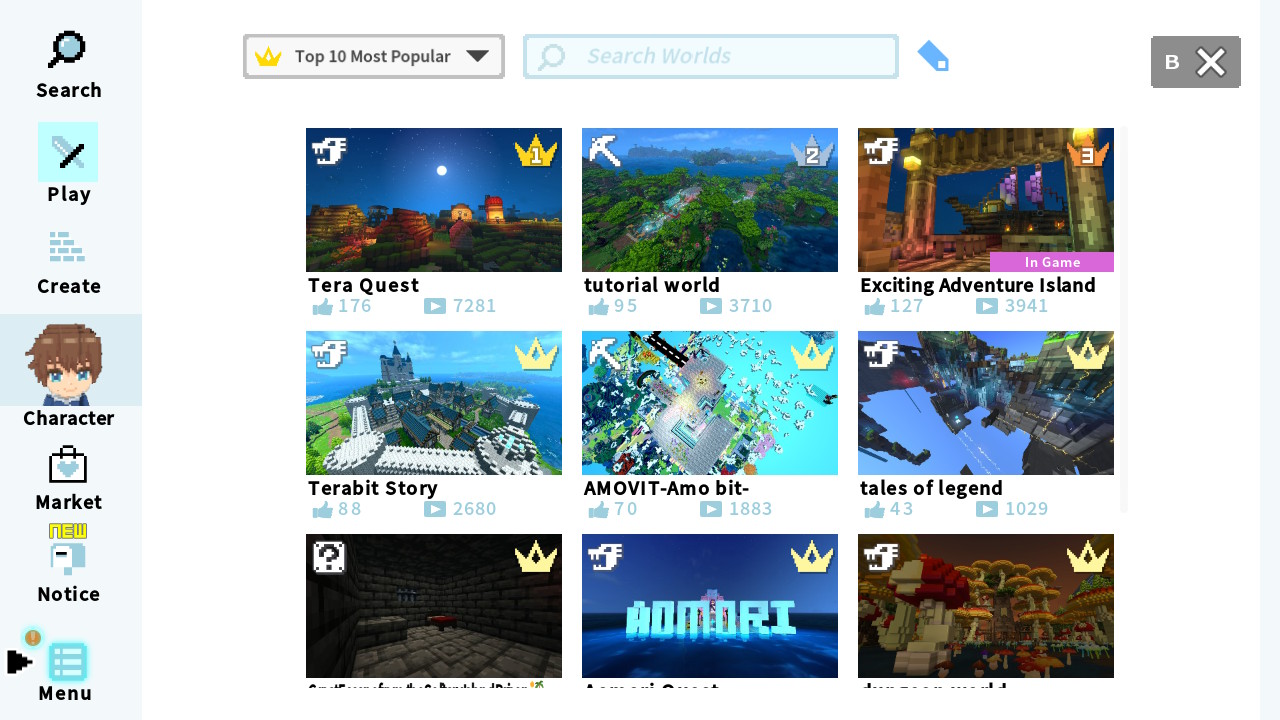
2. Select “Account”.
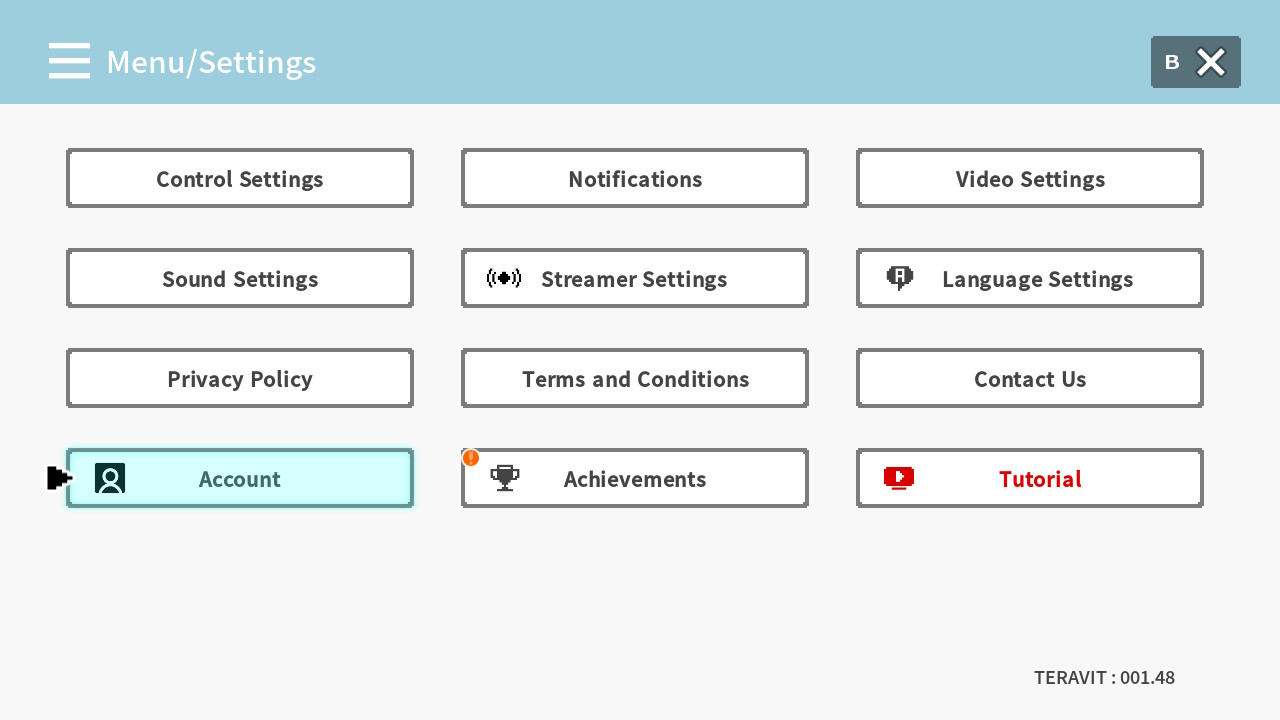
3. Select “Link Account”.
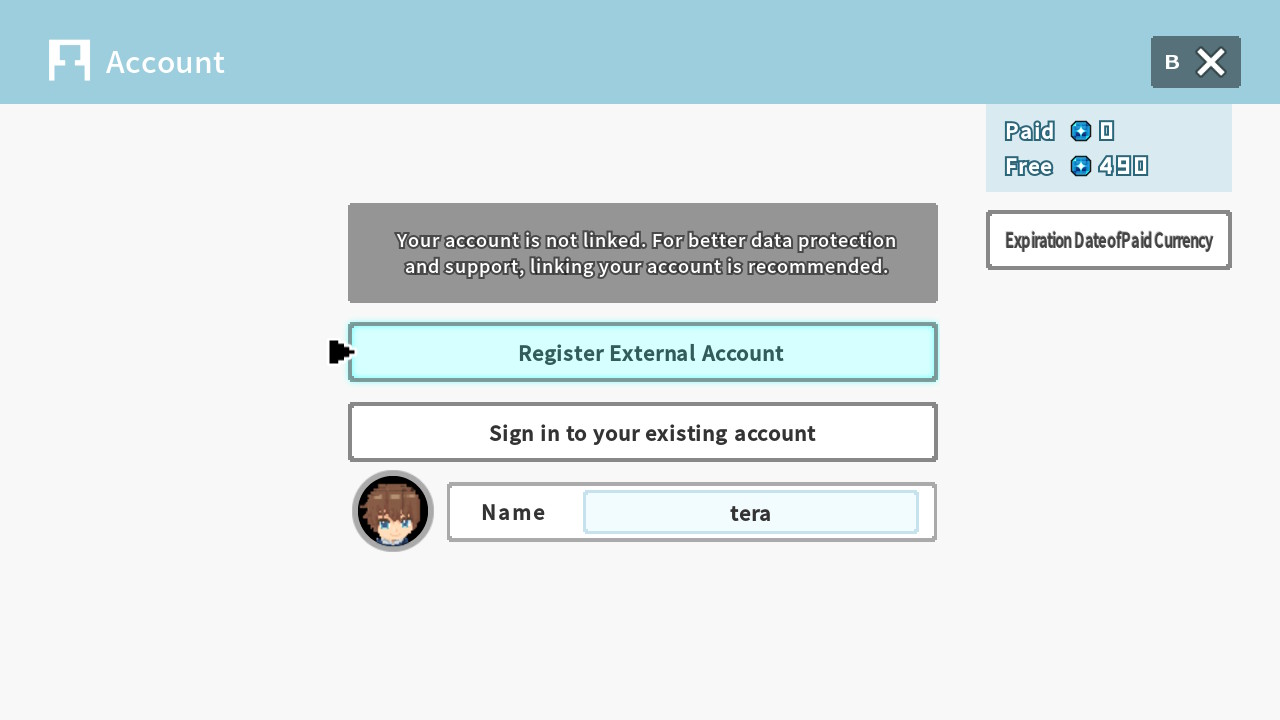
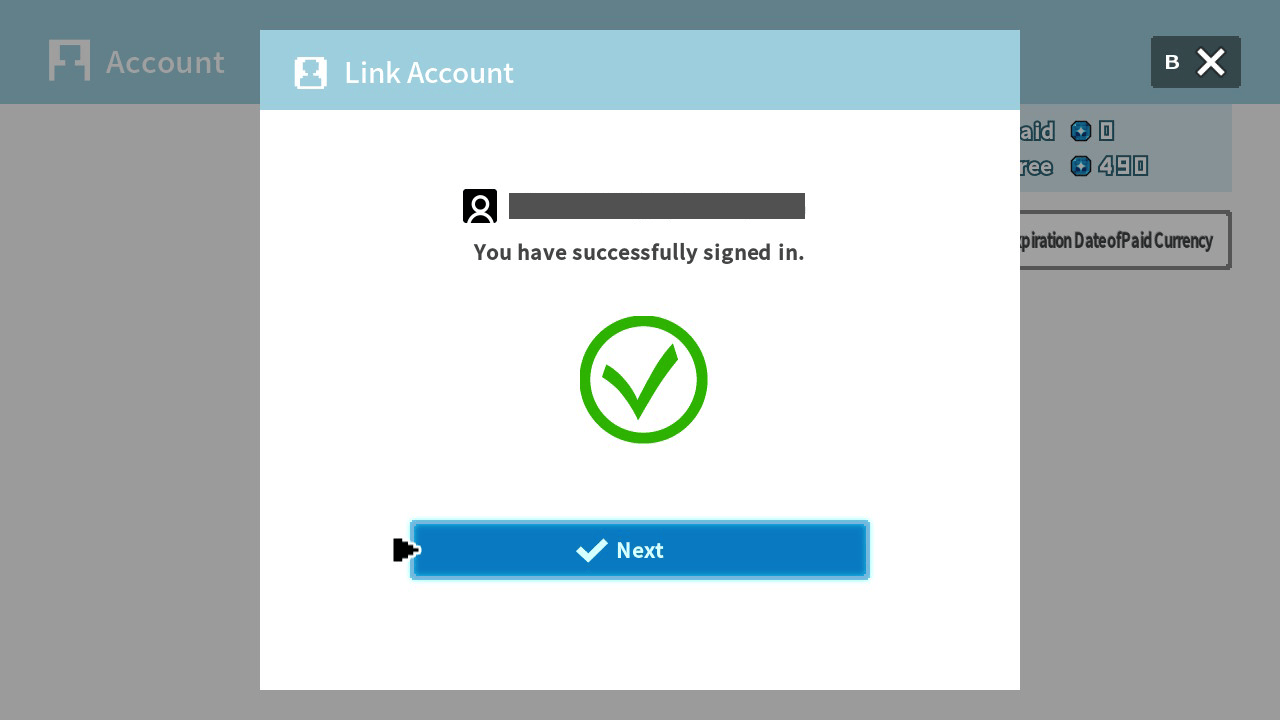
4. Register the email address and password to be used for linking.
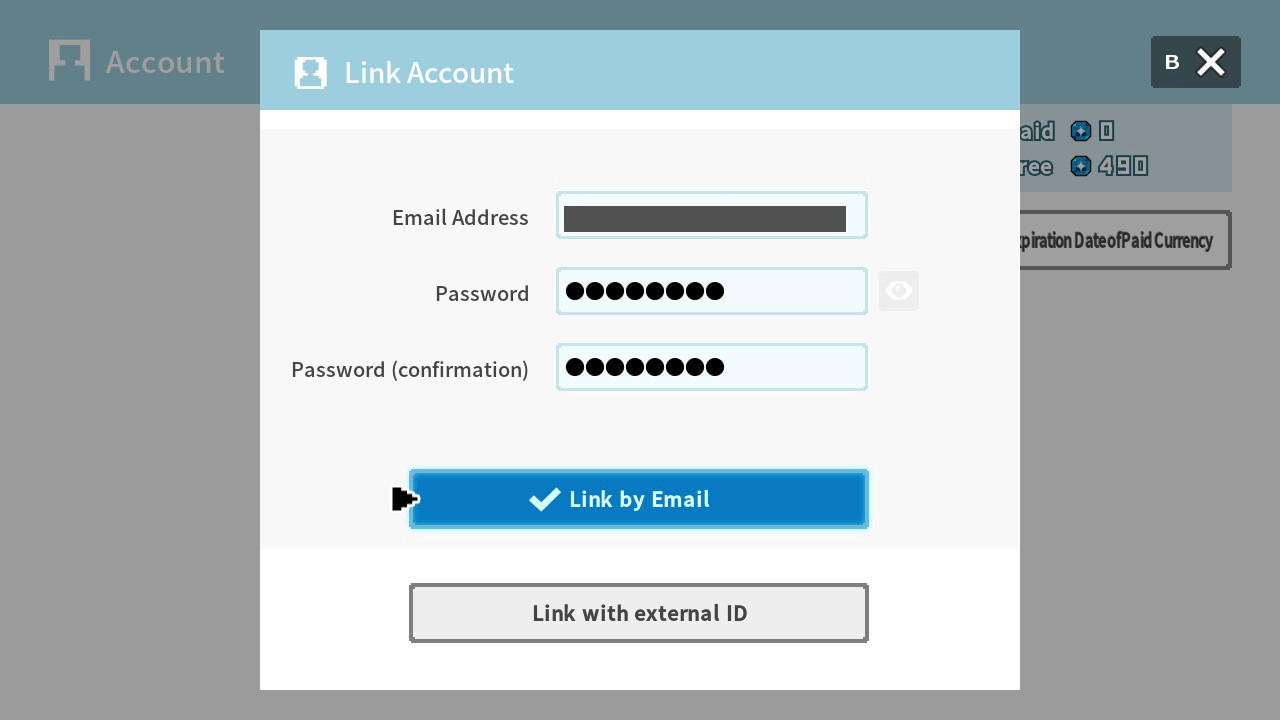
5. Follow the instructions in the verification email sent to the registered email address to complete the verification process.
6. Verification will be completed upon returning to the app, and you will be redirected to the home screen.
Linking Accounts Using External ID
1. Open the “Menu” located at the bottom left of the home screen.
2. Select “Account”.
3. Select “Link Account”.
4. Select ‘Link with External ID,’ and choose the service to link with.
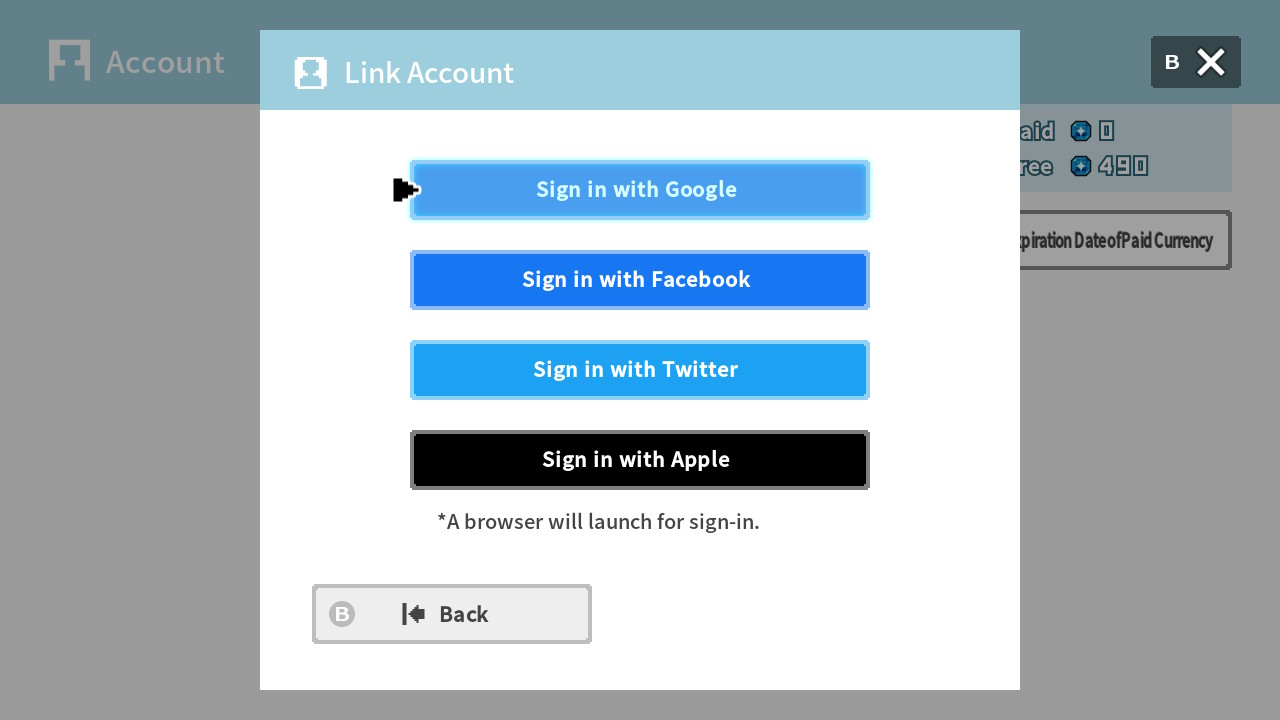
5. Follow the instructions in the verification email sent to the registered email address to complete the verification process.
6. Verification will be completed upon returning to the app, and you will be redirected to the home screen.
Linking to an Existing Account on PC/Steam Version
1. Open the “Menu” located at the bottom left of the home screen.
2. Select ‘Sign in with an existing account’.
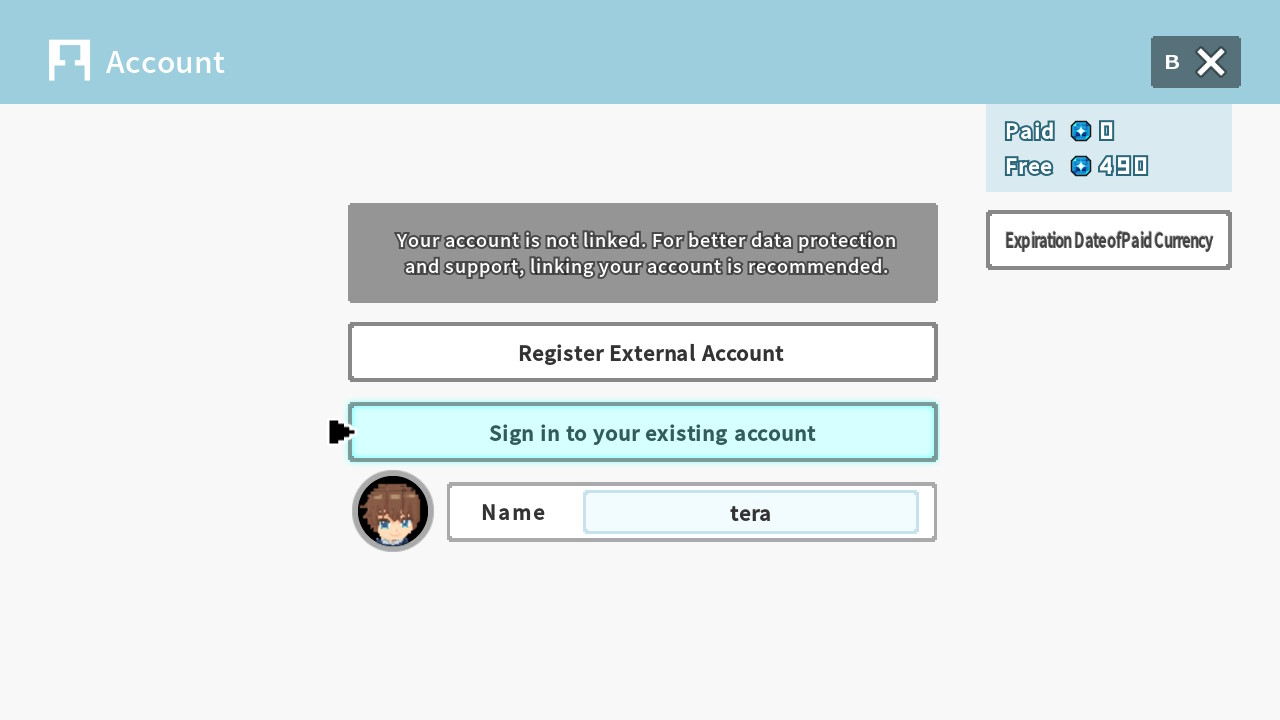
3. Enter the required information for signing in.
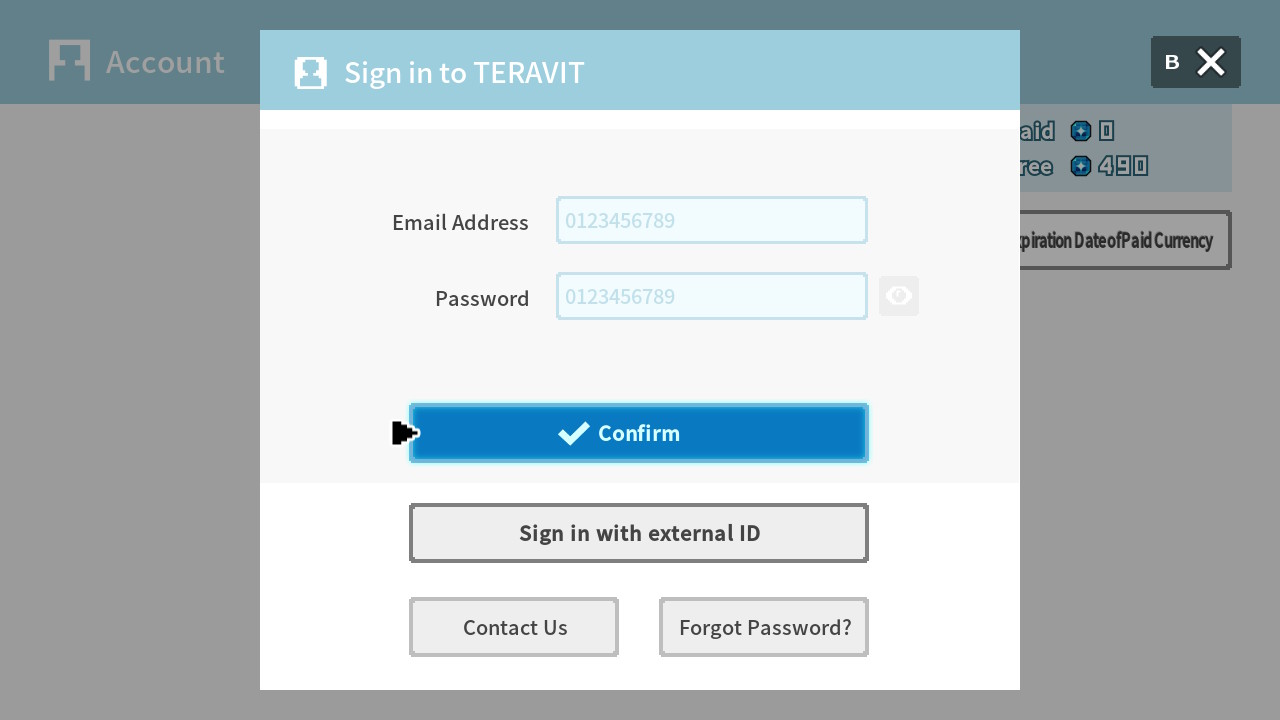
4. After signing in, you will be redirected to the home screen.
Unlinking Accounts
Follow these steps if you have created an account on the smartphone version.
1. Open the “Menu” located at the bottom left of the home screen.
2. Select “Account”.
3. Select ‘Unlink Account’.
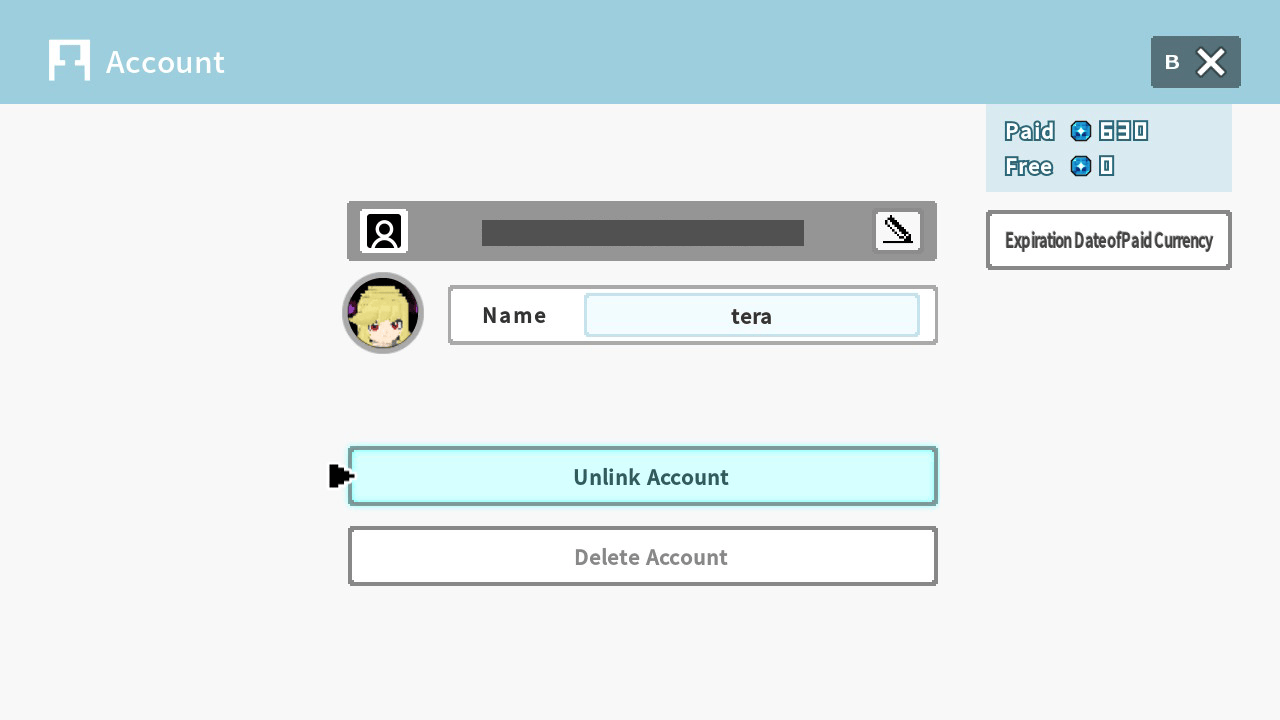
4. Review the precautions and select ‘Confirm’.
< h2 > Signing Out from Linked Account If you have a created account on the PC・Steam version, follow these steps to sign out.
1. Open the “Menu” located at the bottom left of the home screen.
2. Select “Account”.
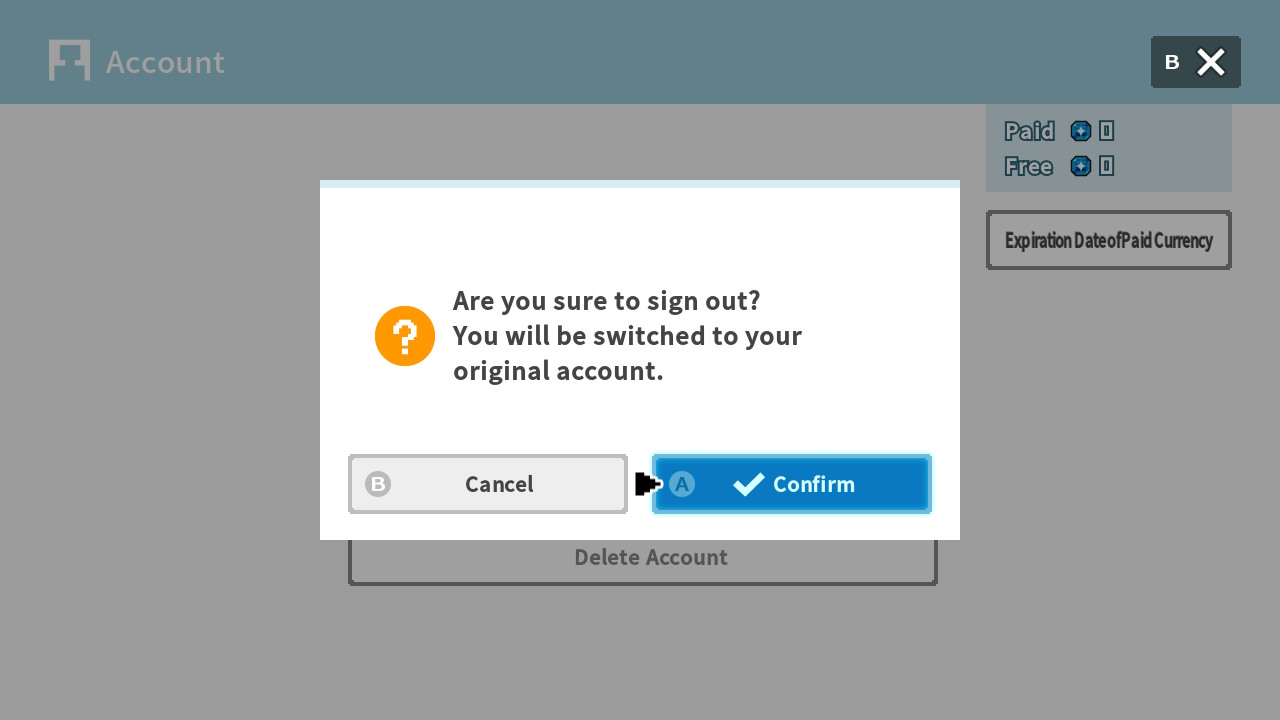
3. Select “Sign Out”.
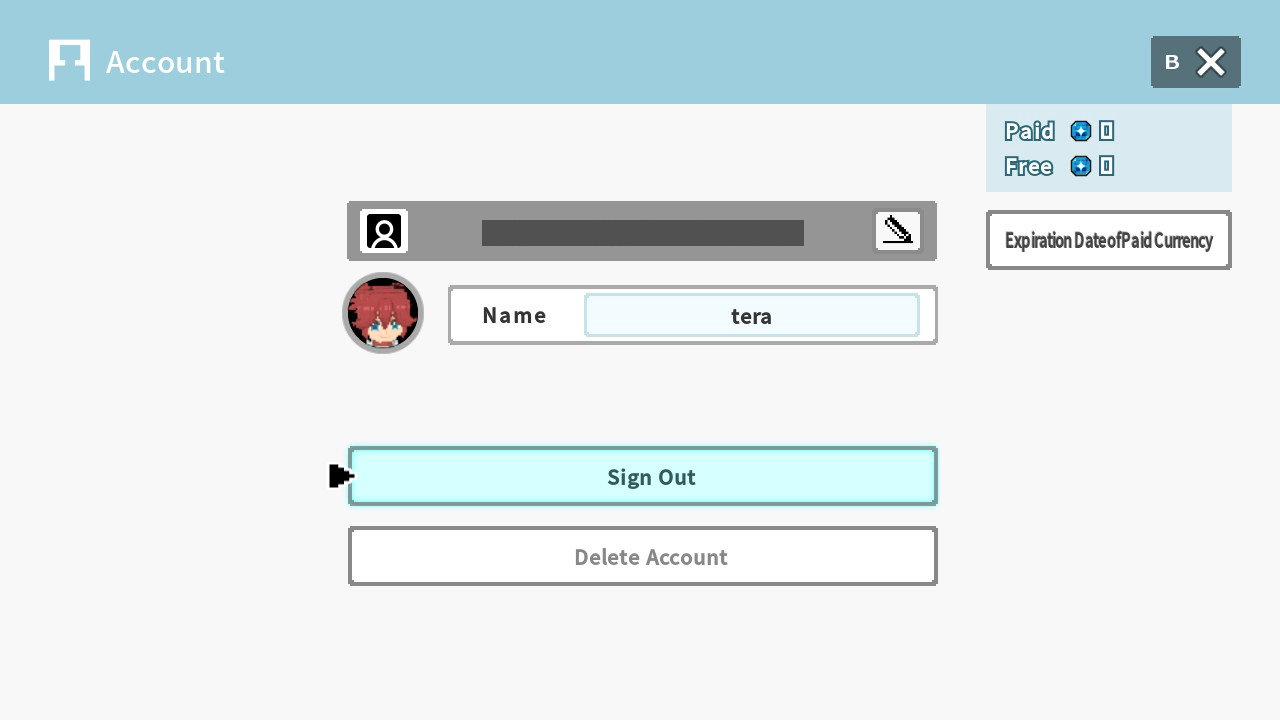
4. Review the precautions and select ‘Confirm’.
Link Again to Previously Linked Account
1. Open the “Menu” located at the bottom left of the home screen.
2. Select “Account”.
3. Select ‘Sign in with an existing account’.
4. Select ‘Forgot Password,’ and enter your email address.
5. Follow the instructions in the email sent to the registered email address and proceed with the password reset process.
6. After completing the password change, input your email address and password to finalize the linkage.
If you have any questions or encounter issues regarding your account, please contact us through the support form.