

[Create] Generate a World
Initial World Setup
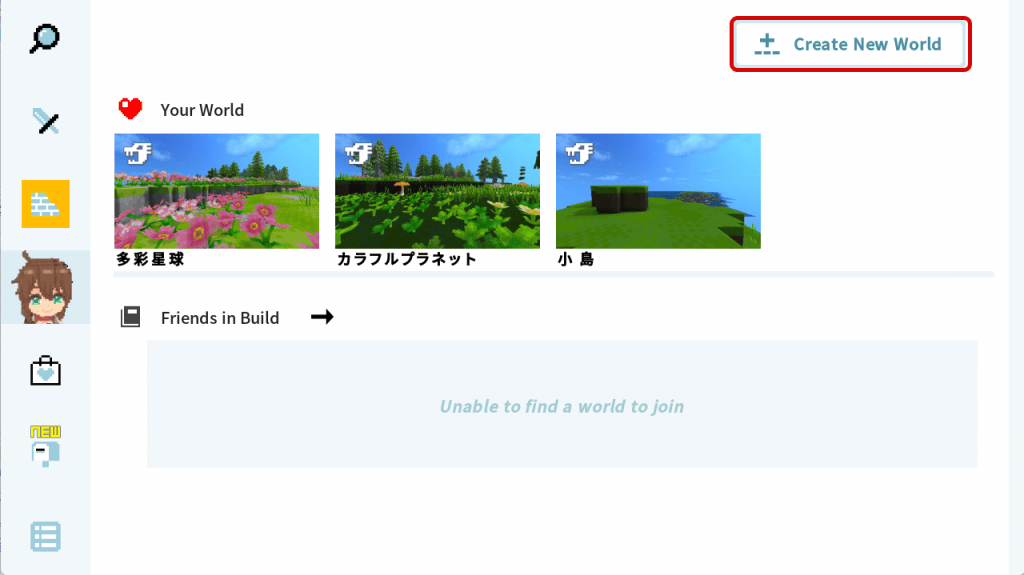
1. Select “Create New World”
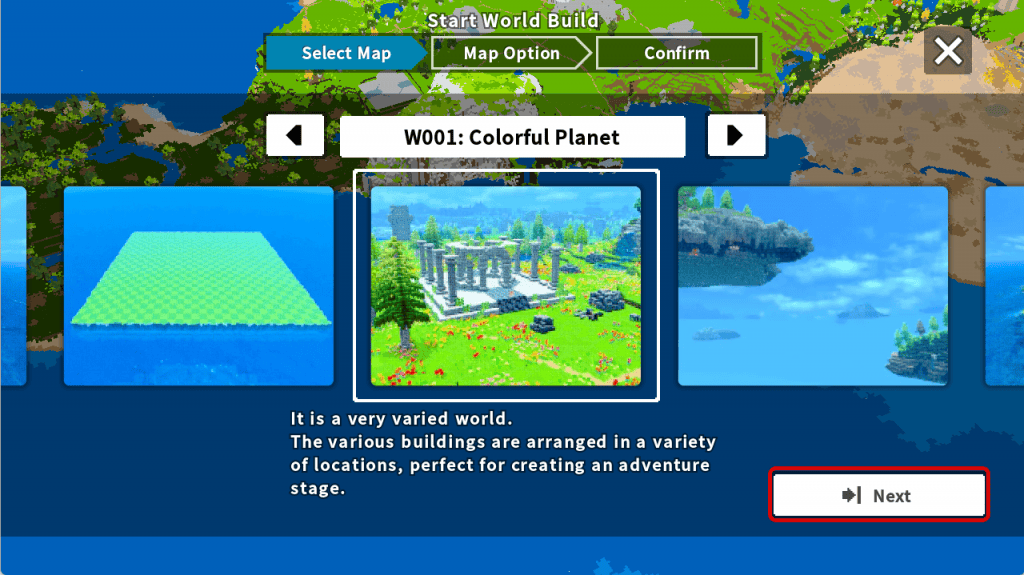
2. Select the world type, then select “Next”.
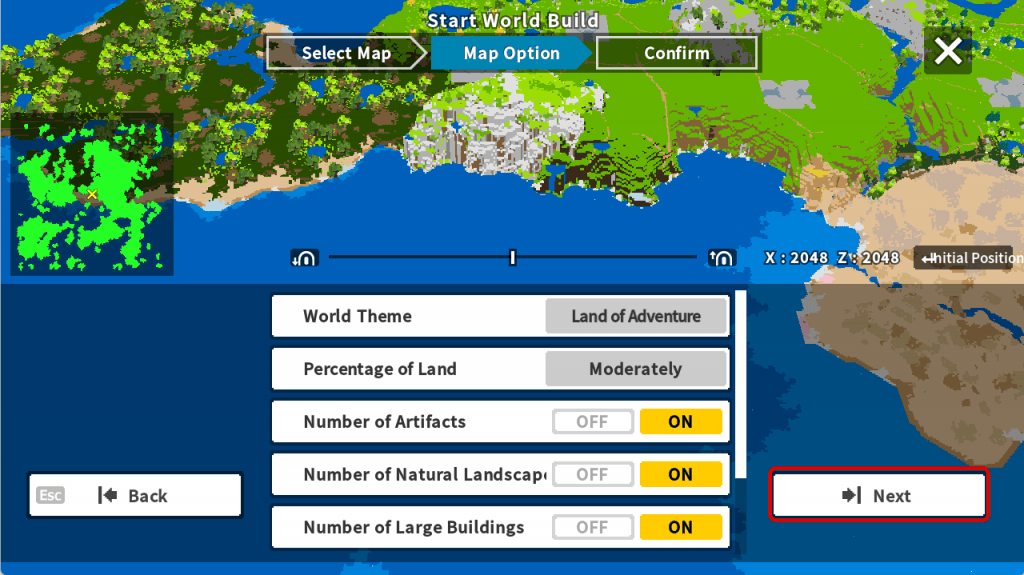
3. Select the world generation options. Each one has different options to choose.
4. Once you’ve selected your preferred options, select “Next.”
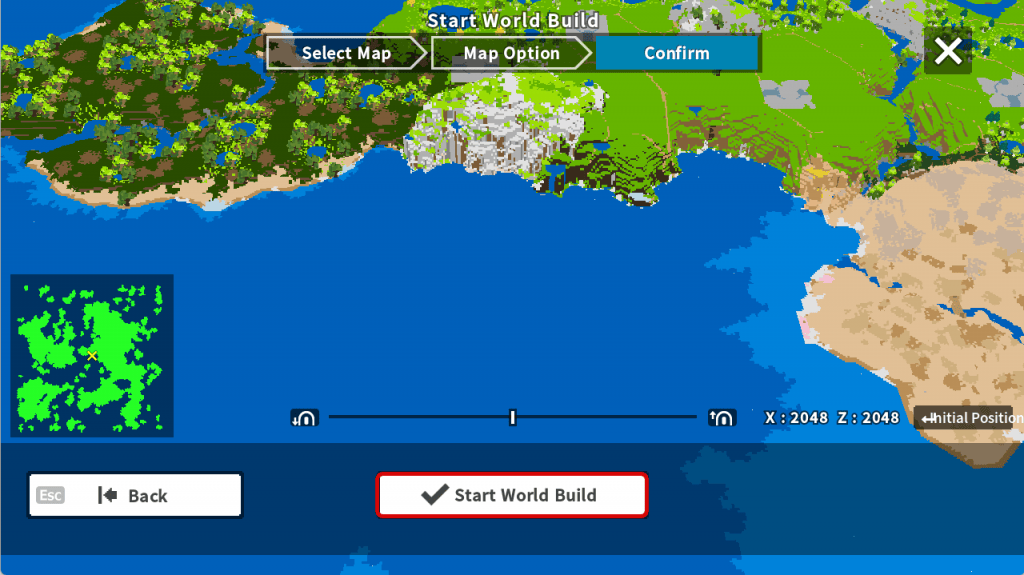
4. After confirming the overall world view, select “Start World Build”.
※Once a world has been generated it cannot be changed.
Saving a World
Save
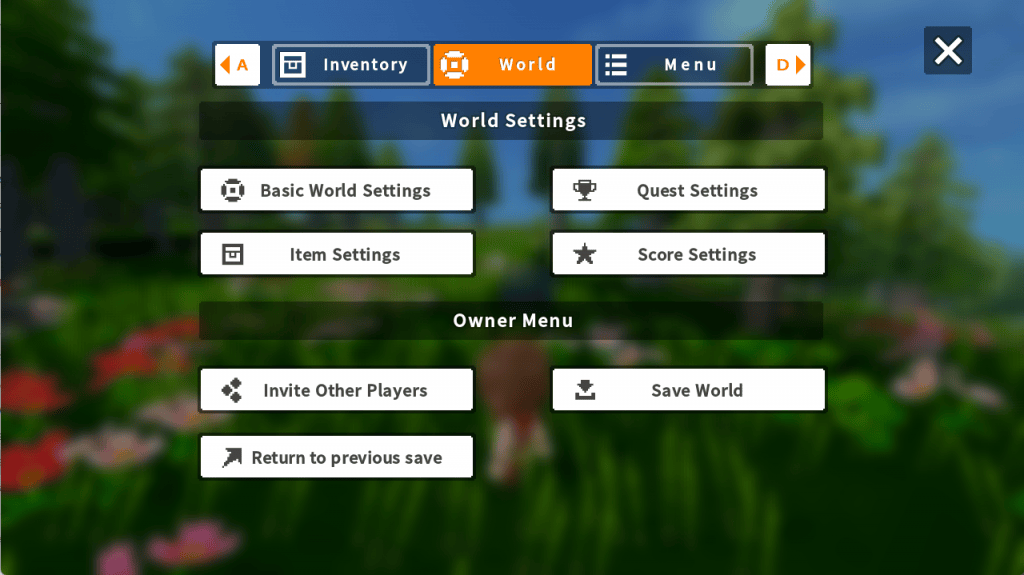
Open the menu screen, select the world tab then click the “Save World” button to save your world data.
Upload
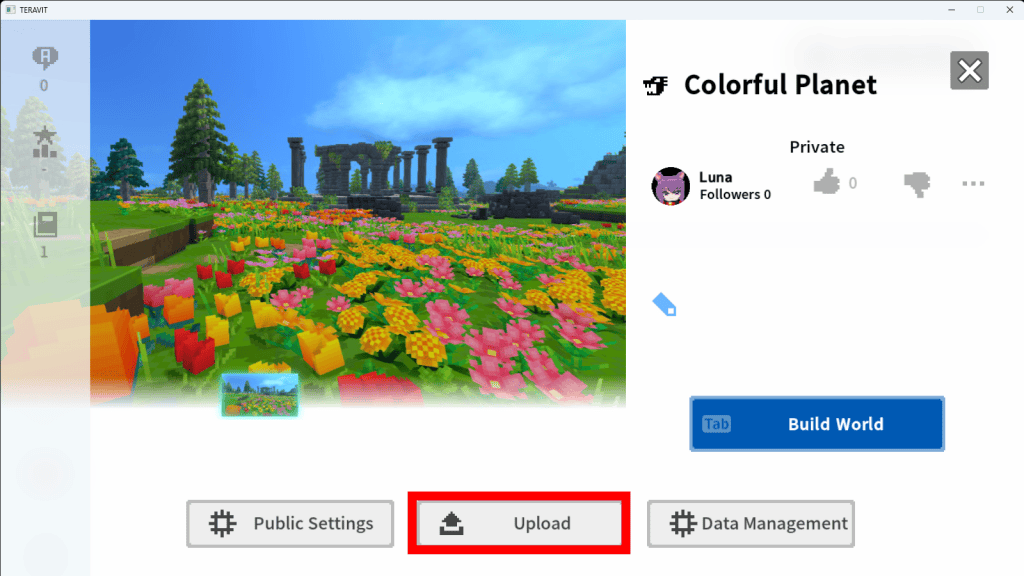
1.On the home screen, select your chosen world and then select “Upload”.
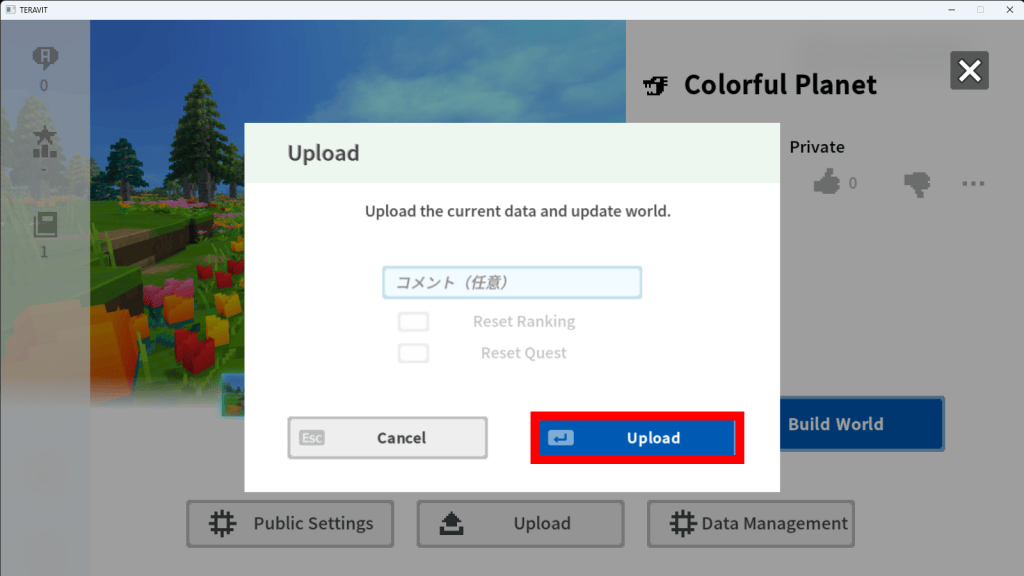
2.Select the necessary categories and choose “Upload”.
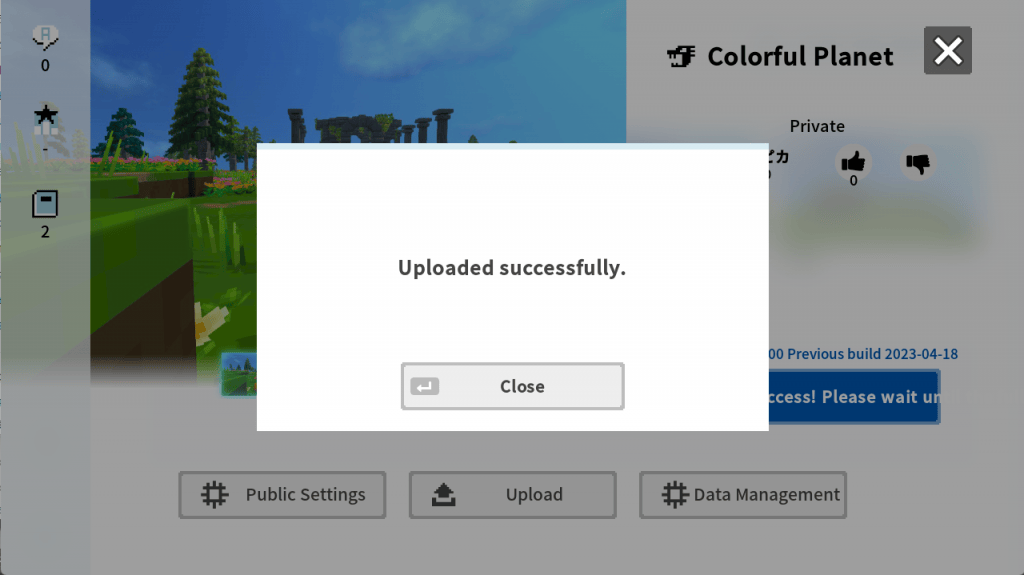
3.Teravit automatically synchronizes uploaded worlds when you sign in from another PC.
Data Management (Backup)
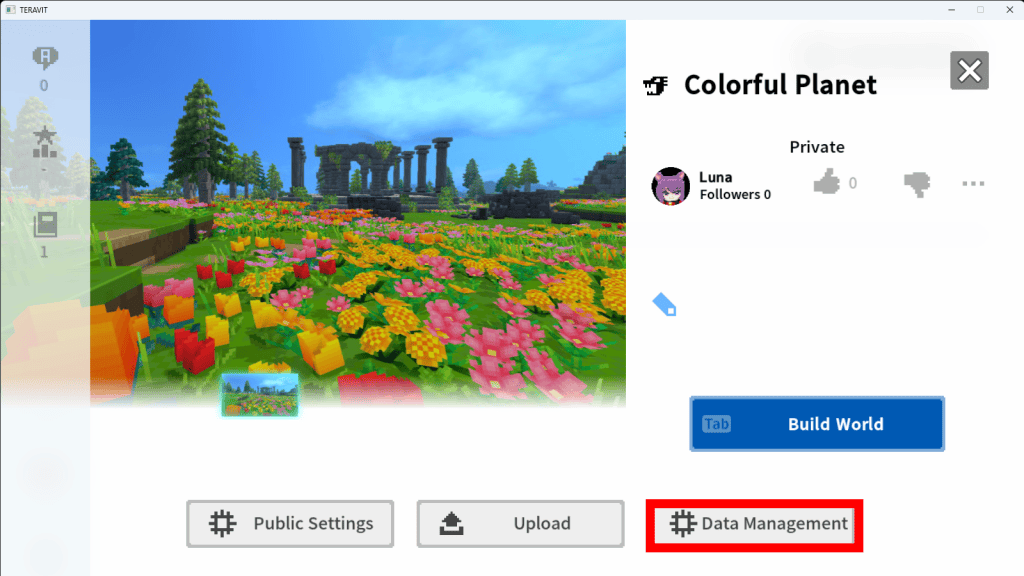
1.From the home screen, select a world and then select “Data Management”.
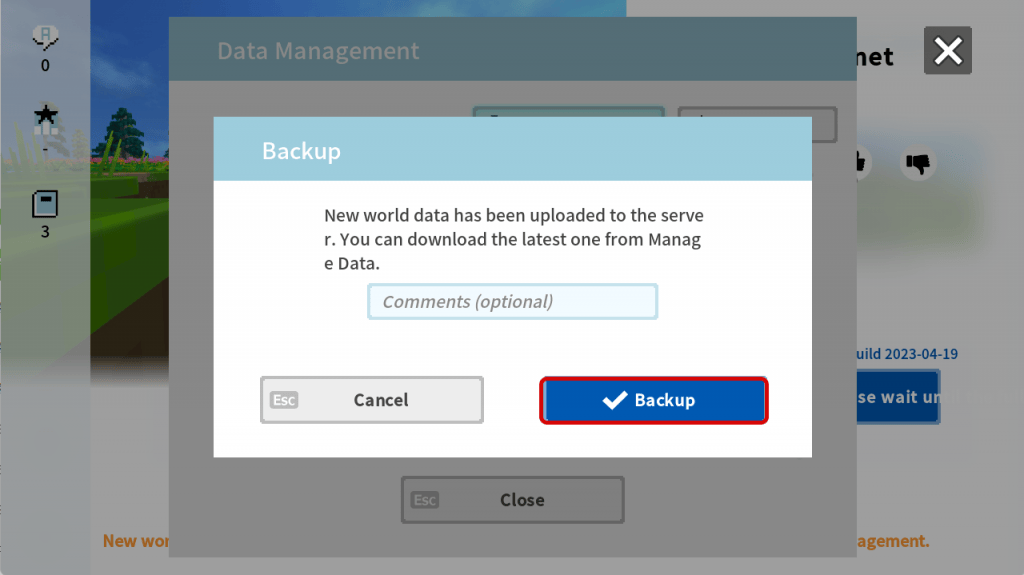
2.Select “Cloud Backup”, then select the necessary categories. Finally, select “Backup”.
3.Backup data will be added to the backup list.
If you would like to rewind your work, select the data you want to restore and select “Restore Data”.
Uploaded saved data can also be restored.
Caution
World data saved on your computer itself can be loaded even after the official release.
However, uploaded or backed-up data will be erased after the “”World Build Pre-Play”” is finished.